
Enable and disable CoreRP extensions
Turn an extension on so its settings become available, or disable one that your server no longer uses.
Enable an extension
- Select the Discord server in the CoreRP dashboard.
- Open Extensions.
- Find the extension you want and select Enable.
- If CoreRP opens an invitation window, read the message and select Invite to authorize the extension bot for the same Discord server.
- If you selected Invite, return to Extensions, select Enable on the extension card, then confirm Enable in the window.
The card changes to Disable, and the extension's settings appear under Module settings. Extension changes save immediately, so there is no page-level Save button.
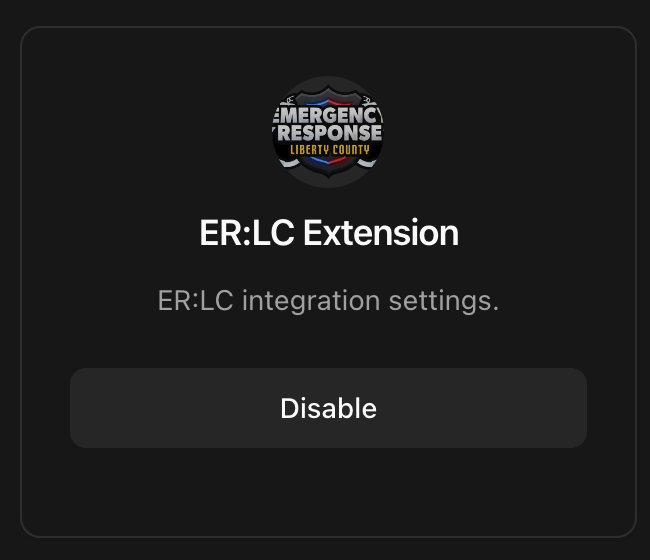
Open an extension invite
An enabled extension that has its own Discord bot can show Invite beside Disable. Use that button when you need to add the extension bot to the server.
Disable an extension
Disabling an extension makes its dependent workflows unavailable until you enable it again.
- Open Extensions.
- Find the enabled extension and select Disable.
- Confirm that its related group no longer appears under Module settings.
Next steps
To use CoreRP with Emergency Response: Liberty County, continue with Connect CoreRP to your ER:LC server.