Create and use a permission group
Create a reusable group that grants a feature to selected citizens, a Discord role, or everyone.
Create the group
-
Open the module and feature you want to control, then select Manage perms.
-
Open Permission groups.
-
Select Create group.
-
Enter a clear Group name and optional Description.
-
Under Members from, choose one membership type:
- Manual citizens — enter at least two characters under Add members, then select Add beside each intended citizen.
- Discord role — use Select role to choose a synchronized Discord role.
- Everyone — include every eligible citizen.
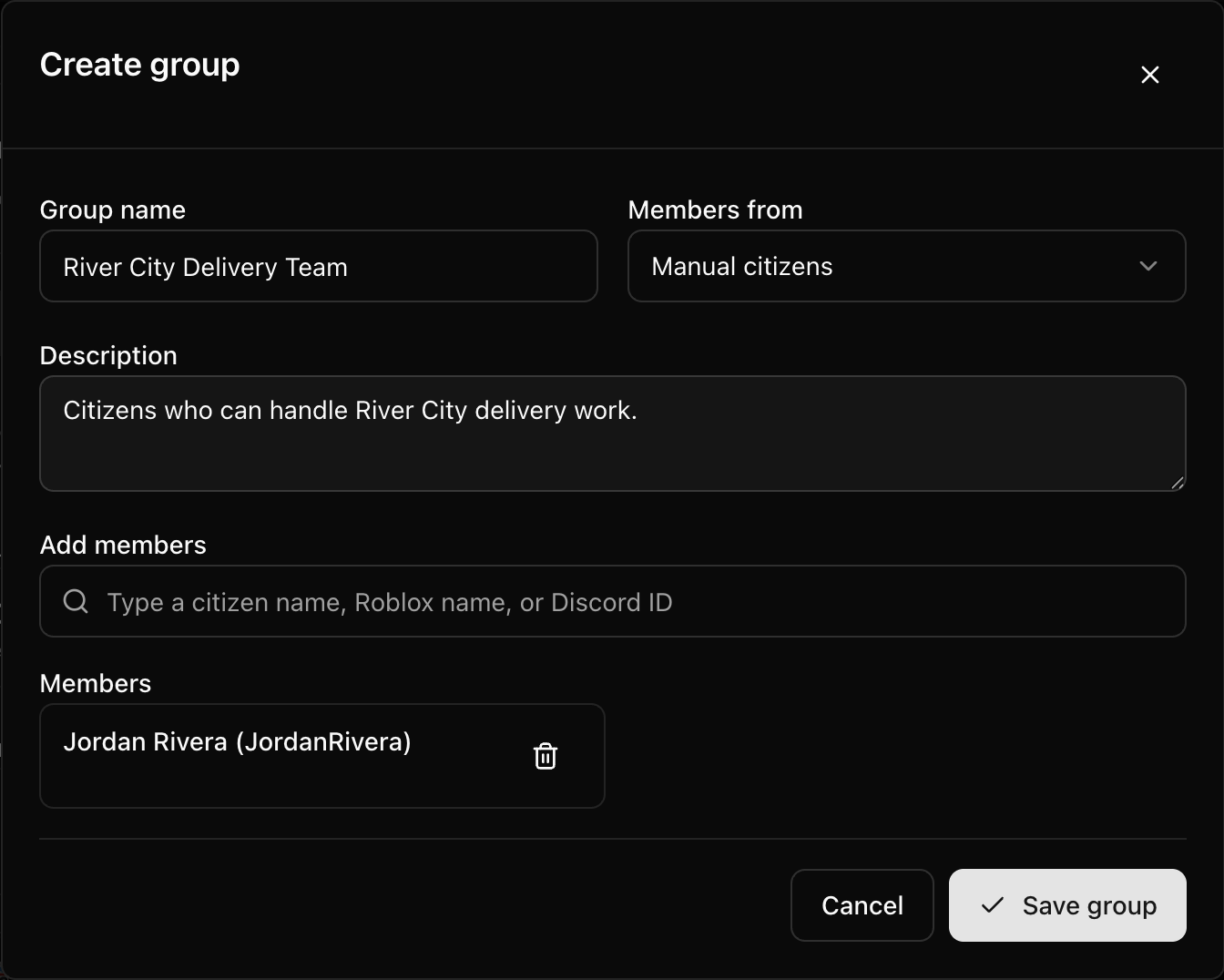
- Select Save group.
Assign the group to a feature
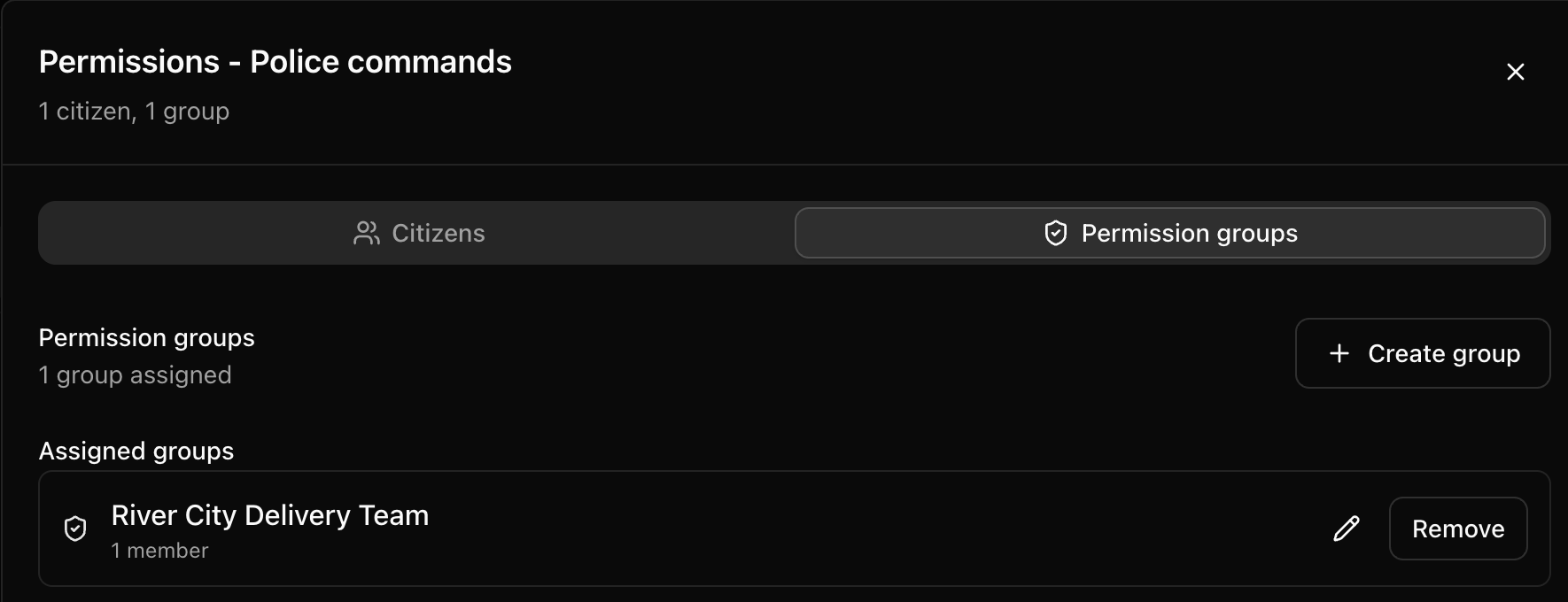
- Find the group under Available groups.
- Select Add beside the group to move it to Assigned groups for the current feature.
- Confirm that it appears in the assigned list.
Group creation and assignment save through their own controls. You do not need the module-level Save for those group actions.
Update or remove a group
Edit the group to change its name, description, or membership. To delete it, select the delete action and confirm Delete this permission group? Deleting the group removes its access wherever that group was assigned.
Next steps
Read Understand alert roles, feature permissions, and dashboard access for the difference between CoreRP access types.