View and manage your server billing
Check the CoreRP plan assigned to a Discord server and open its billing-management options.
Before you begin
- Sign in with owner or administrator access to the intended server.
- Make sure you select the correct Discord server before changing billing.
Review the current plan
- Select the server in the CoreRP dashboard.
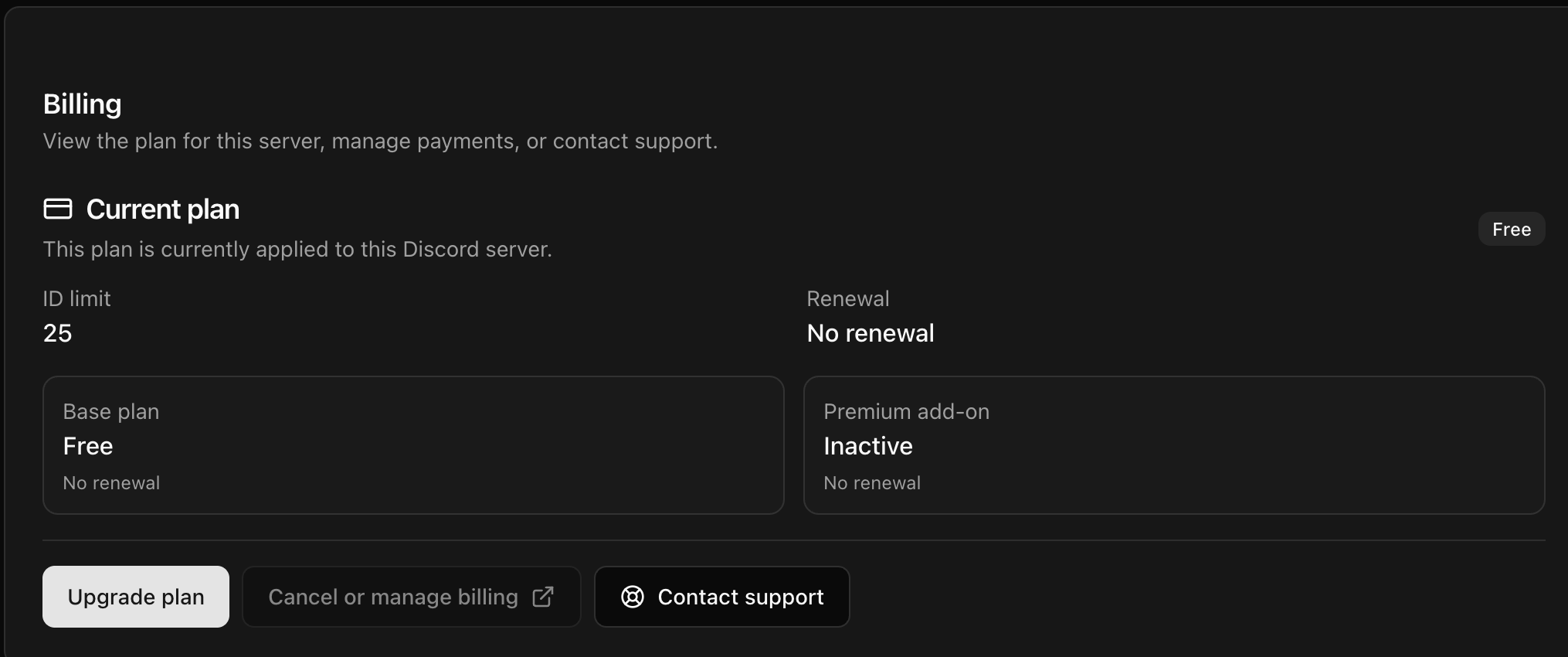
- Open Billing.
- Review Current plan, ID limit, and Renewal.
- Check the separate Base plan and Premium add-on areas when they are shown.
Manage or change billing
- Select Upgrade plan or Change plan to open the available CoreRP plans.
- On a paid plan, select Cancel or manage billing to open the billing portal. Follow the labels displayed by the payment provider to update or cancel the subscription.
- A free server has no paid-subscription portal to manage.
After changing a plan, return to Billing and confirm that Current plan shows the entitlement assigned to the intended server.
Next steps
Follow Buy a CoreRP plan for a Discord server when you want to purchase a new plan or Premium add-on.