Submit feedback and view your reports
Send a bug report, feature request, question, or other message to the CoreRP team from the dashboard.
Submit a report
- Select your Discord server in the CoreRP dashboard.
- Open Reports.
- Under Report type, choose Bug report, Feature request, Question, or Other.
- Choose a Priority: Low, Normal, High, or Urgent.
- Enter a clear Subject between 3 and 120 characters.
- In Details, explain what you need in at least 20 characters. Include the relevant feature, what you were trying to do, and what help you need. Do not include passwords, tokens, private server keys, or payment details.
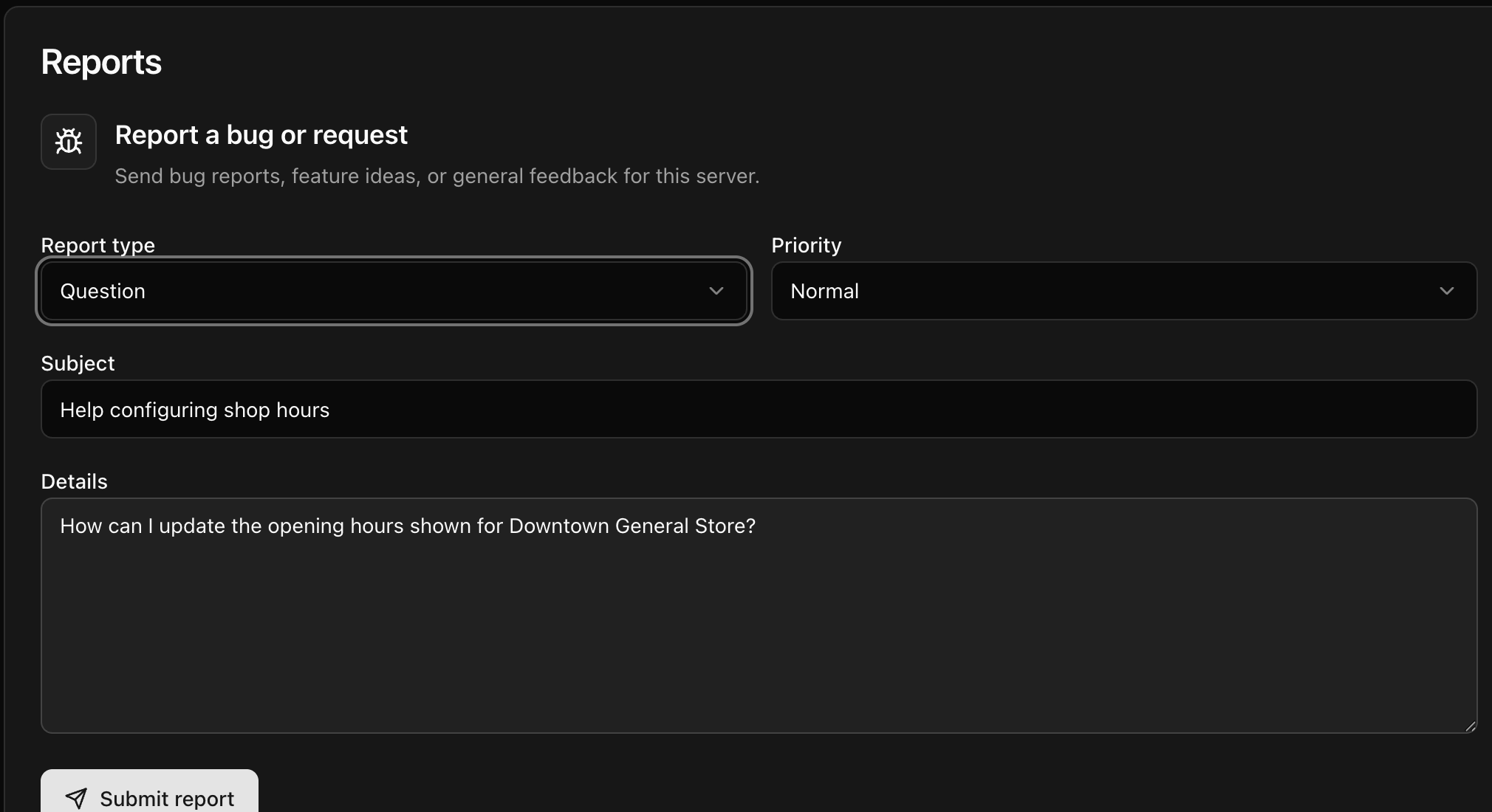
- Select Submit report.
CoreRP confirms Your report has been submitted and clears the form. Wait at least one minute before submitting another report.
View your reports
Scroll to Your recent reports. This section shows the reports submitted by your signed-in account for the selected Discord server, including their type, subject, details, and submission date.
Next steps
For a server-access request, follow Request dashboard access for another administrator.