Approve or decline a vehicle registration
Review a vehicle registration request and approve or decline it.
Before you begin
- A requester must first submit a vehicle registration or edit.
- You need access to the configured ID/Vehicle confirmation channel and its request messages.
- If your server restricts the workflow, use its required channel and role.
Keep the confirmation channel and any required access role limited to trusted staff.
Approve and Decline apply immediately with no separate confirmation. Verify the requester, vehicle, and every proposed value before selecting either button.
Declining a new registration discards its submitted plate and assigns the vehicle a generated identifier. Declining a registration edit restores the previous details.
Review the request
-
Open the current Vehicle registration request or Vehicle registration edit request.
-
Check the requester, model, plate, owner, and color.
-
For an edit, compare every Original value with its New value.
-
Select one decision:
- Approve — accepts the proposed registration.
- Decline — rejects a new registration or restores the original values for an edit.
Confirm the decision
For a new registration:
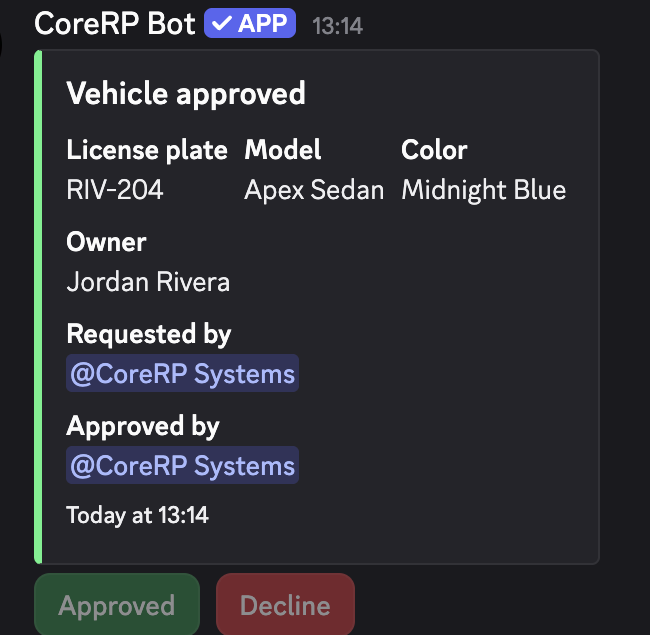
- Approve changes the card to Vehicle approved.
- Decline changes the card to Vehicle declined and returns the vehicle to the unregistered list.
For a registration edit:
- Approve keeps the proposed fields and returns the vehicle to approved.
- Decline restores the previous plate, owner text, and color.
- CoreRP sends the requester the edit decision when direct messages are available.
Both buttons are disabled after a successful decision.
The requester can run /garage show after the decision:
- An approved registration appears under Registered vehicles with the accepted values.
- A declined new registration appears under Unregistered vehicles.
- A decided edit appears under Registered vehicles with either the proposed or restored values.
Troubleshooting
- This request is no longer valid — another reviewer may have decided it, or the vehicle/request changed. Verify the current garage before taking another action.
- The card is visible but the buttons cannot be used — confirm the vehicle workflow is enabled, satisfy any required channel and role, and confirm your Discord channel permissions permit interactions.
- The requester did not receive a direct message — check the result with
/garage show.
Next steps
Continue with view your garage and transfer a vehicle.