Configure driving-licence prices
Set the four country-specific driving-licence prices and publish the Driving License panel in Discord.
Before you begin
- You need owner or administrator access to your Discord server in the CoreRP dashboard.
- Confirm the server's country, language, and timezone settings. The country controls which four licence labels appear.
- Configure the CoreRP economy and bank. Driving licences use the currency saved in the Economy module.
- To run
/admin panel, you need the Discord Manage Messages permission and access to CoreRP administrator commands. - In the publication channel, CoreRP needs View Channel, Send Messages, and Embed Links.
Configure the prices
-
Open the CoreRP dashboard, select your Discord server, then open Module settings → Other.
-
Under Prices → Driver's licenses, enter a nonnegative price for each of the four visible licence classes.
The four price positions stay the same when the country changes, but CoreRP relabels them:
- USA – California and USA – Texas: Class C, Class A, Class B, and Class M
- USA – New York: Class D Operator, Class E, CDL Class A, and Class M
- Czech Republic and Germany: Group B, Group C1, Group D1, and Group T
- Slovakia and United Kingdom: Group B, Group C1, Group D1, and Group T
CoreRP stores prices to two decimal places. Use
0or a positive number. The currency comes from the Economy module. -
Select Save, reload the page, and confirm that all four fields still show the saved values.
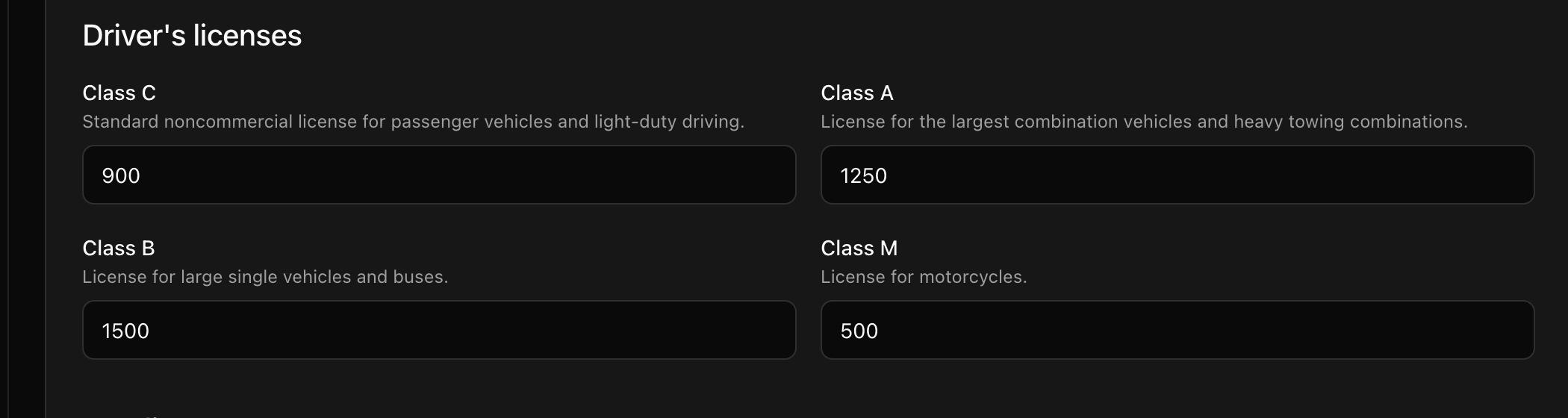
The image shows example values for USA – California. Your labels, values, and Economy currency can differ.
Publish the Driving License panel
-
In Discord, run
/admin panel panel:Driving License channel:[optional].The
paneloption is required and must be Driving License. Thechanneloption is optional; select a channel to publish there, or omit it to publish where you run the command.
Each licence button immediately attempts to buy that licence. When checking the panel, do not select a button unless you intend to make the purchase.
-
Confirm that CoreRP privately responds Panel was sent to this channel. and publishes Driver licenses with the description Here you can purchase a driver license and all four purchase buttons.
In this example, the panel values are
900$,1250$,1500$, and500$, with Class C, Class A, Class B, and Class M buttons. Your panel should show your own four saved values and Economy currency.
After changing the country, price, language, or currency, save the settings and publish the panel again. If a new panel appears, keep the newest one and remove the older copy.
Troubleshooting
- If a value becomes
0, enter a valid nonnegative number and save again. Blank, nonnumeric, and negative values cannot persist as positive prices. - If CoreRP cannot publish the panel, confirm your administrator-command access and CoreRP's View Channel, Send Messages, and Embed Links permissions in the destination.
Next steps
Continue with buying a driving licence for the complete identity, account, inventory, charge, and purchase-log workflow.