Configure the CoreRP economy and bank
Set the bank branding, currency, starting balance, notification threads, and country-specific banking details used by CoreRP.
Before you begin
- Complete CoreRP setup.
- Set the server's country first. The country controls which banking-detail fields and bank identifier CoreRP uses.
- You need owner or administrator access to your Discord server in the CoreRP dashboard.
- Create and synchronize any Discord threads you want to use for bank or invoice notifications. In both selected threads, CoreRP needs View Channel, Send Messages in Threads, and Embed Links. The Invoice notifications thread also requires Read Message History.
Configure the economy and bank
-
Open the CoreRP dashboard and select your Discord server.
-
Open Module settings, then select Economy Settings.
-
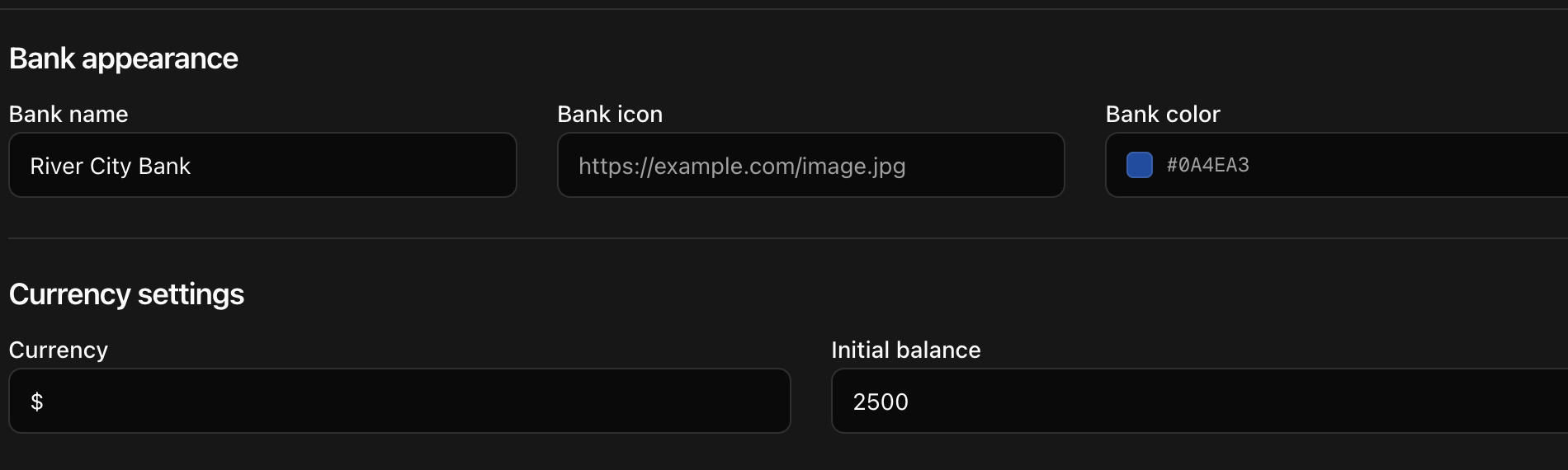
Under Bank appearance, configure:
- Bank name: the name shown in branded banking messages, including the ATM panel.
- Bank icon: an optional public image URL used in banking embeds.
- Bank color: the accent color used in branded banking embeds.
-
Under Currency settings, enter the Currency text or symbol displayed beside amounts and the Initial balance assigned to new citizens.
Initial balance is assigned to new citizens.
Changing Currency relabels existing account balances and banknotes. It does not convert their amounts.
-
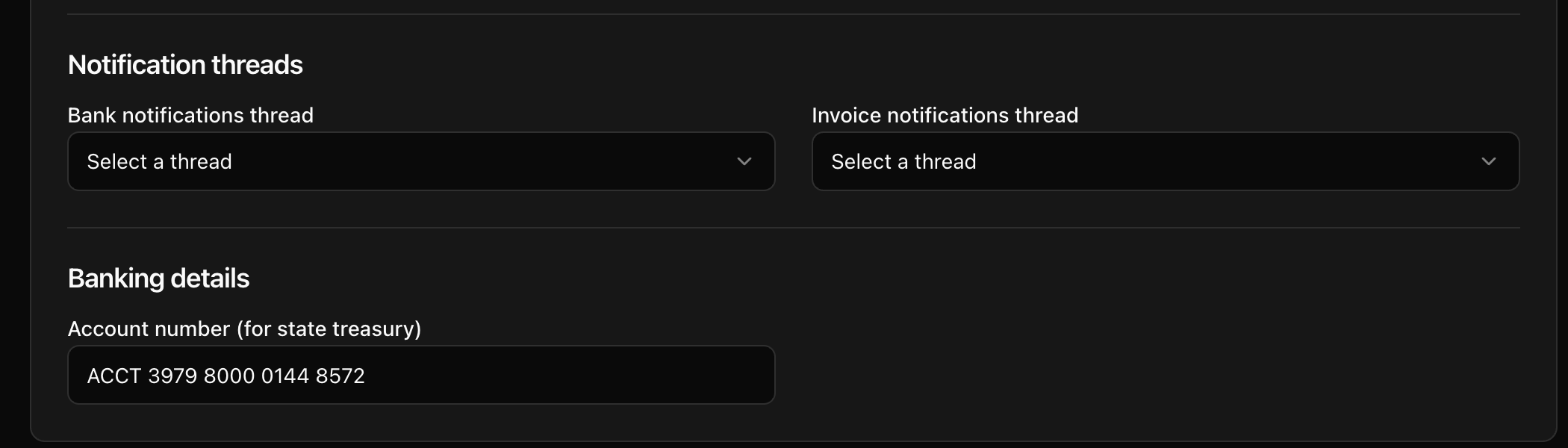
Under Notification threads, configure the available destinations:
- Bank notifications thread receives transfer notifications for recipients.
- Invoice notifications thread receives new invoices and their controls. Configure it before using invoices.
Read Message History lets CoreRP update invoice controls and statuses after payment or cancellation.
If either selector has no synchronized threads, create the thread in Discord and synchronize the server before returning to this page.
-
Review Banking details. The visible fields depend on the country selected in Basic Settings:
- USA - California, USA - Texas, and USA - New York show Account number (for state treasury).
- Slovakia, Czech Republic, Germany, and United Kingdom show only IBAN short (bank code); the full-IBAN field is not rendered.
Review the treasury and fine-payment destinations after changing the banking details.
- Select Save, refresh the page, and confirm that every field still shows the saved value.
Troubleshooting
- If a thread is unavailable in the dashboard, confirm that it still exists in Discord, synchronize the server data, and reload the selector.
- If invoice creation reports an inaccessible notification thread, run
/bank invoice listbefore trying again because the invoice may already exist. Then fix the Invoice notifications thread. - If CoreRP reports that an account is missing, activate a citizen ID and main account. Create a secondary account before selecting Secondary account in another command.
- If a bank command is unavailable, check the server's command-channel, command-role, cooldown, and optional ER:LC rules.
Next steps
Learn how to view your balance and pay another citizen, create a second bank account, manage invoices, or deposit and withdraw cash at the ATM. Administrators can continue with Manage citizen items and money with administrator commands.