Change your server language, country, and timezone
Update the language CoreRP uses, the regional settings for your roleplay server, and the timezone used for dates and times.
Before you begin
- Complete CoreRP setup.
- Sign in to the CoreRP dashboard with access to the intended Discord server.
Update the regional settings
- Select your Discord server in the CoreRP dashboard.
- Open Basic Settings.
- Under Language, choose English, Slovak, Czech, or German.
- Under Country, choose the country or U.S. region that matches your roleplay server. This controls regional choices such as licence names and measurement units.
- Open Timezone and use Search timezones to find the location that should control dates and times. For example, choose
America/Los_Angelesfor California.
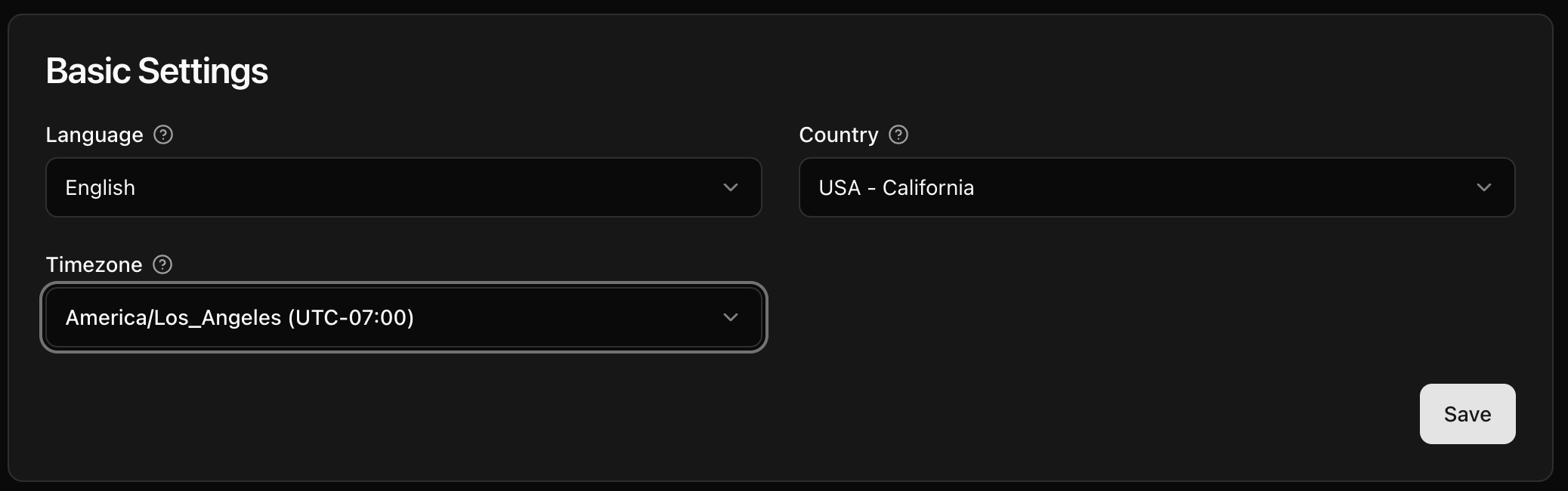
- Select Save. CoreRP confirms Settings saved.
On a free server, changing the language may open Invite the matching language bot. Select Invite and add the matching CoreRP bot to the same Discord server, or select Later if an administrator will complete that step.
Confirm the result
Reload Basic Settings and confirm that the selected language, country, and timezone remain selected. CoreRP uses the new choices for future localized commands, panels, dates, and regional options.
Next steps
Continue with Configure CoreRP channels and roles.