Configure public transport fares
Set all 12 public transport fares, choose the completed-purchase log thread, and publish the Public Transport panel in Discord.
Before you begin
- You need owner or administrator access to your Discord server in the CoreRP dashboard.
- Configure the CoreRP economy and bank. Public transport uses the saved server currency.
- To run
/admin panel, you need the Discord Manage Messages permission and access to CoreRP administrator commands. - In the panel channel, CoreRP needs View Channel, Send Messages, and Embed Links.
- In the Public transport log thread, CoreRP needs View Channel, Send Messages in Threads, and Embed Links.
Configure the fares and log thread
-
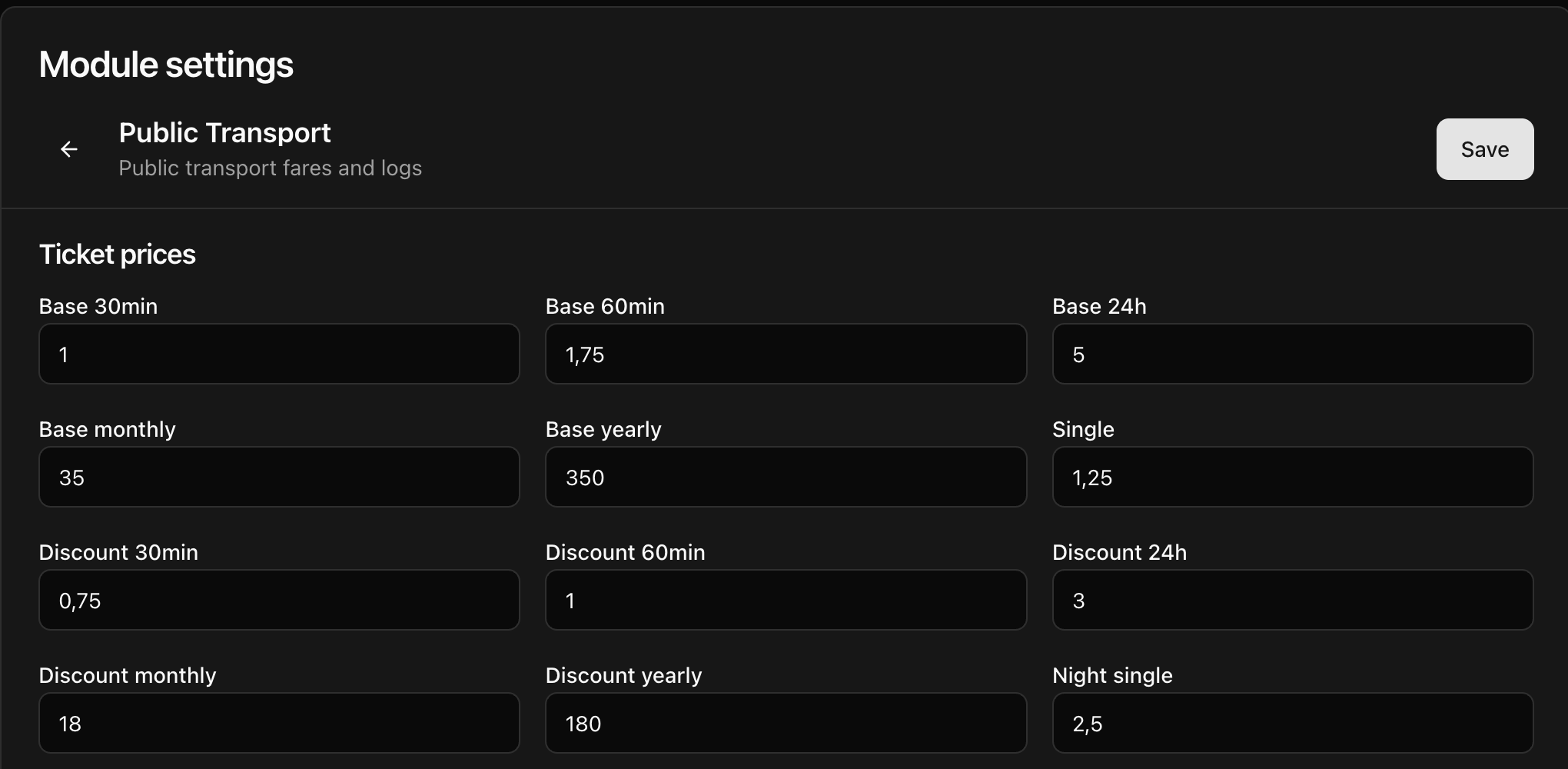
Open the CoreRP dashboard, select your Discord server, then open Module settings → Services → Public Transport.
-
Enter a nonnegative price in every ticket field. The dashboard labels map to the Discord ticket names as follows:
- Base 30min, Base 60min, Base 24h, Base monthly, and Base yearly → the matching Basic duration
- Single → Basic single
- Discount 30min, Discount 60min, Discount 24h, Discount monthly, and Discount yearly → the matching Discounted duration
- Night single → Basic night single
CoreRP saves fares to two decimal places. A blank or nonnumeric value saves as
0, and a negative value is clamped to0. -
Under Public transport log thread, select the synchronized thread that should receive completed-purchase records. Leave the selector blank when you do not want purchase logs.
-
Select Save, reload the page, and confirm that all 12 fares and the selected thread still show the saved values.
Publish the Public Transport panel
-
In Discord, run
/admin panel panel:Public Transport channel:#your-channel.The
paneloption is required. Thechanneloption is optional; omit it to publish in the channel where you run the command. -
Confirm that CoreRP privately responds Panel was sent to this channel. and publishes Public transport tickets with the Discounted tickets and Basic tickets groups plus Buy ticket.
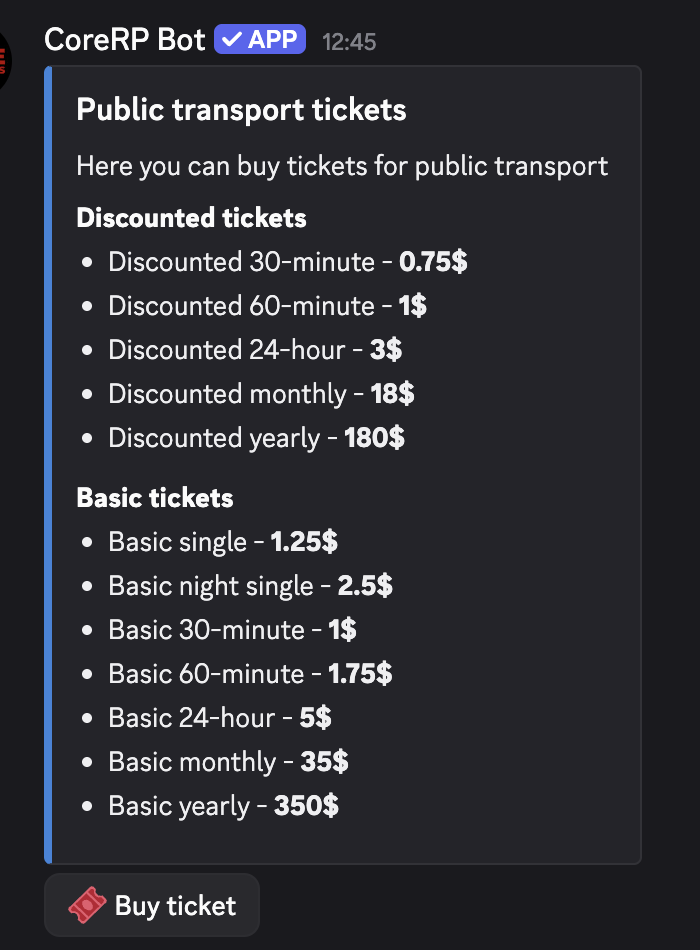
After changing a fare, save the settings and publish the panel again.
Troubleshooting
- If a fare becomes
0after saving, enter a valid nonnegative number and save again. Blank, nonnumeric, and negative values cannot persist as positive fares. - If a new or renamed log thread does not appear, run
/admin webin Discord, wait for the private synchronization result, then reload Public Transport./admin webhas no options and requires the same Manage Messages and CoreRP administrator-command access described above. - If CoreRP cannot publish the panel, confirm your administrator-command access and CoreRP's View Channel, Send Messages, and Embed Links permissions in the destination.
- If a completed purchase has no log, check Public transport log thread and CoreRP's thread permissions.
Next steps
Continue with buying public transport tickets for the full charge, inventory, validity, and purchase-log workflow.