Configure pumping station fuel prices
Set fuel and EV charging prices, choose the completed-payment log thread, and publish the Gas Station panel in Discord.
Before you begin
- You need owner or administrator access to your Discord server in the CoreRP dashboard.
- Configure the CoreRP economy and bank. The pumping station uses the saved server country and currency.
- To run
/admin panel, you need the Discord Manage Messages permission and access to CoreRP administrator commands. - In the panel channel, CoreRP needs View Channel, Send Messages, and Embed Links.
- In the Shell log thread, CoreRP needs View Channel, Send Messages in Threads, and Embed Links.
- A member needs an active citizen ID and primary bank account when they submit the payment form.
Configure the prices and log thread
-
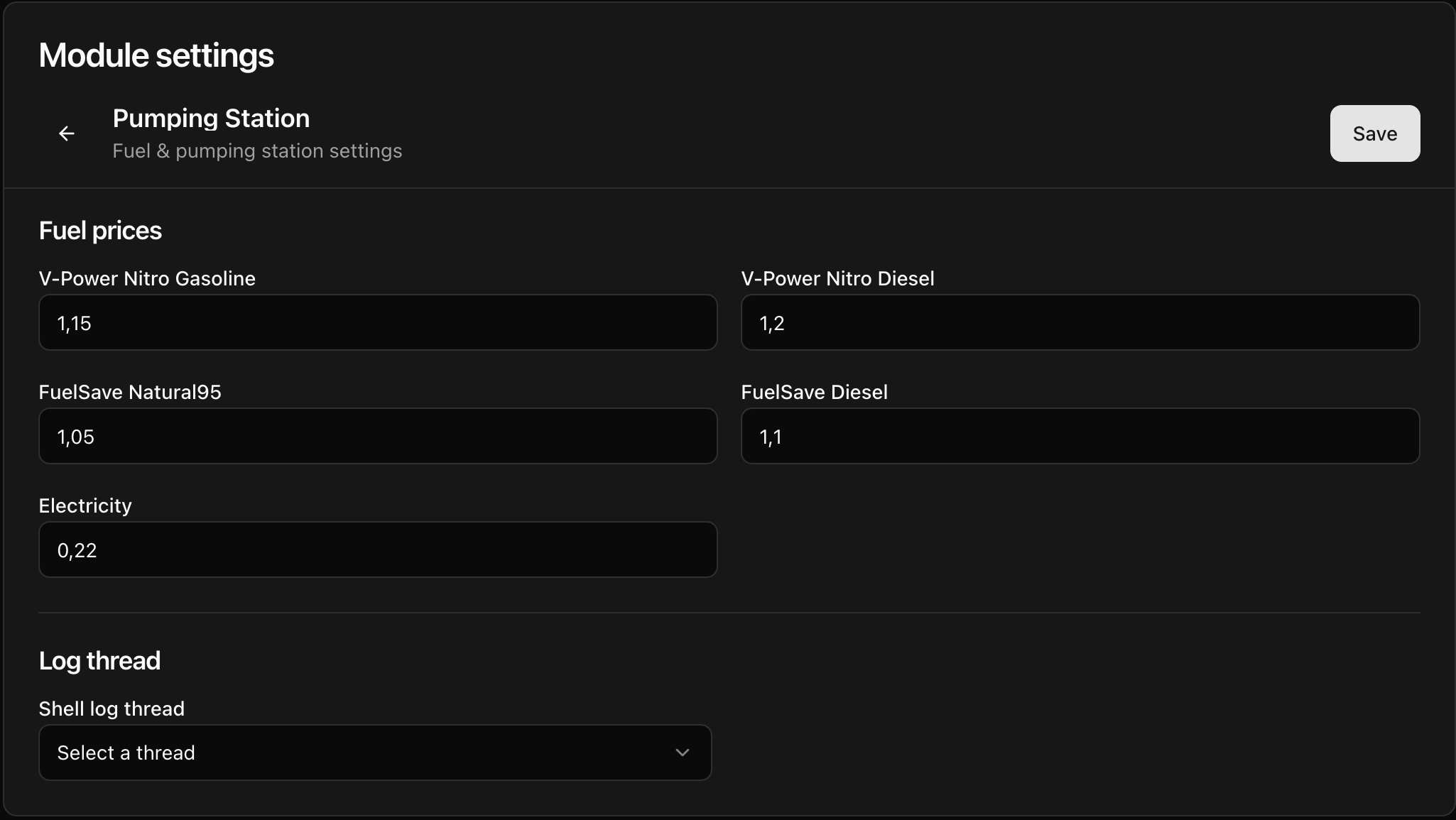
Open the CoreRP dashboard, select your Discord server, then open Module settings → Services → Pumping Station.
-
Enter a nonnegative price in each field. CoreRP saves prices to two decimal places. A blank price saves as
0, and a negative price is clamped to0. The fields map to Discord as follows:- V-Power Nitro Gasoline → Shell V-Power Nitro+ Petrol
- V-Power Nitro Diesel → Shell V-Power Nitro+ Diesel
- FuelSave Natural95 → Shell FuelSave Natural 95
- FuelSave Diesel → Shell FuelSave Diesel
- Electricity → Electricity (EV charging)
The four liquid-fuel fields are base prices per liter. Discord uses the server country to display and charge the local unit; for a U.S. server, CoreRP converts them to per-gallon prices and displays them to three decimal places. Electricity is always priced per kWh and is not converted. Payment confirmation totals use two decimal places.
-
Under Shell log thread, select the synchronized thread that should receive completed-purchase records. If the selector is already unselected, leave it unselected when you do not want purchase logs.
-
Select Save, reload the page, and confirm that all five prices and the selected thread still show the saved values.
Publish the Gas Station panel
-
In Discord, run
/admin panel panel:Gas Station channel:#your-channel.The
paneloption is required. Thechanneloption is optional; omit it to publish in the channel where you run the command. -
Confirm that CoreRP privately responds Panel was sent to this channel. and publishes the public Shell fuel station panel with all five saved prices and Buy fuel.
After changing a price, save the settings and publish the panel again. Anyone with an open purchase confirmation should cancel it and reopen the purchase flow to see the current total.
Troubleshooting
- If liquid-fuel prices differ between the dashboard and Discord, check the server country in the Economy module. U.S. servers show the converted per-gallon amount; the dashboard stores the base per-liter price.
- If CoreRP cannot publish the panel, confirm your administrator-command access and CoreRP's View Channel, Send Messages, and Embed Links permissions in the destination.
- If a completed purchase has no log, check Shell log thread and CoreRP's thread permissions.
- If the form reports a missing ID card or account, activate a citizen ID and primary bank account before submitting it again.
Next steps
Continue with buying fuel at the pumping station for the full payment, balance, and purchase-log workflow.