Customize CoreRP embed colors
Choose the eight global colors CoreRP uses for new Discord embeds.
Before you begin
- You need dashboard owner or administrator access to the selected server.
Choose and save colors
-
Open the CoreRP dashboard, select your server, then open Module settings → Other.
-
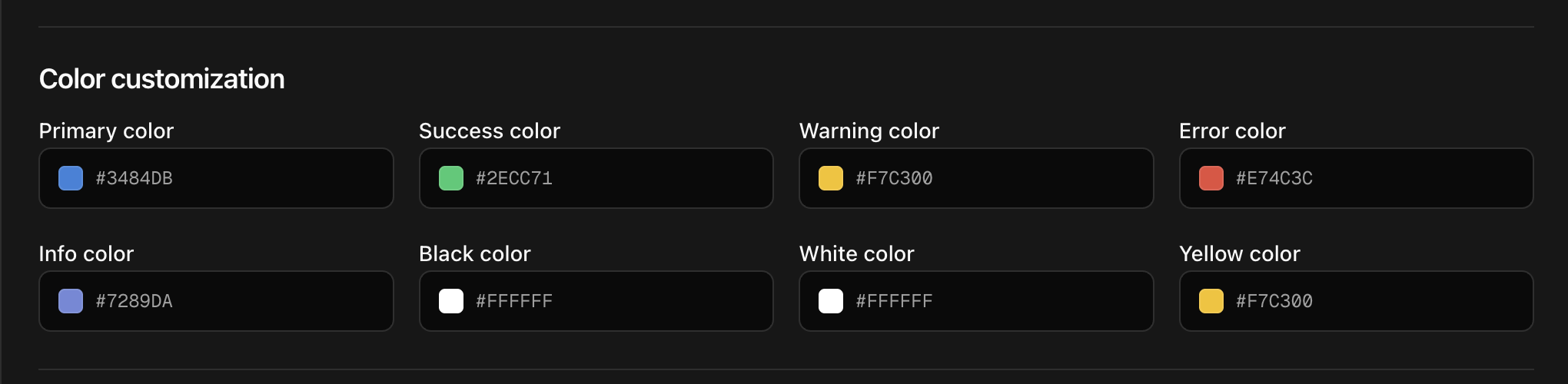
Find Color customization and choose from these eight fields:
- Primary color — default
#3484DB; general panels and neutral information. - Success color — default
#2ECC71; successful actions, logs, Social Benefit, and Driving License panels. - Warning color — default
#F7C300; confirmations, cautions, and the Psychological tests panel. - Error color — default
#E74C3C; errors and the Gun License panel. - Info color — default
#7289DA; informational prompts and phone-number results. - Black color — default
#000000; combined emergency reports such as US911. - White color — default
#FFFFFF; separate ambulance reports where the country profile provides an ambulance number. - Yellow color — default
#F7C300; the Shell fuel-station panel.
- Primary color — default
-
Select a field, drag in the color area to change saturation and lightness, and use the hue bar to change hue.
-
Use the format menu to view the selected color as HEX, RGB, CSS, or HSL.
-
Repeat for each color you want to change.
- Select Save. After CoreRP displays Settings saved, reload Other and confirm the changed values remain.
New commands and panels use the saved colors.
Understand color overrides
The eight fields are global defaults, but some features have their own appearance setting:
- Bank embeds can use Bank color from Economy Settings.
- Social posts can use Embed color from Social network.
- Shop panels can use each shop's Shop color.
- Resolving an emergency report changes its stripe to fixed green
#2ECC71.
Discord button styles are separate from embed colors. For example, Respond remains blue and Resolve remains green regardless of the emergency report's stripe.
Troubleshooting
- To choose a color, use the color area and hue bar.
- A new embed uses another color — check for a bank, social-network, or shop override, or a fixed status color.
Next steps
Continue with Configure insurance prices, or Call another citizen or emergency service.