Restrict a shop to an ER:LC map area
Draw a map boundary so members can use a shop only while their Roblox character is inside it in Emergency Response: Liberty County (ER:LC).
Before you begin
- Create and configure the shop.
- Connect CoreRP to your ER:LC private server and enable the ER:LC Extension.
- You need owner or administrator access to the server in the CoreRP dashboard.
- Each member using the shop needs an active CoreRP identity with their Roblox name and an active primary bank account. That Roblox player must be online in the connected ER:LC server so CoreRP can read their position.
The shop panel continues to follow the role and channel access rules described in the shop setup tutorial.
Draw the shop area
- Open the dashboard, select your Discord server, and go to Module settings → Shops.
- Open the shop you want to restrict.
- Under Shop area, select Edit area.
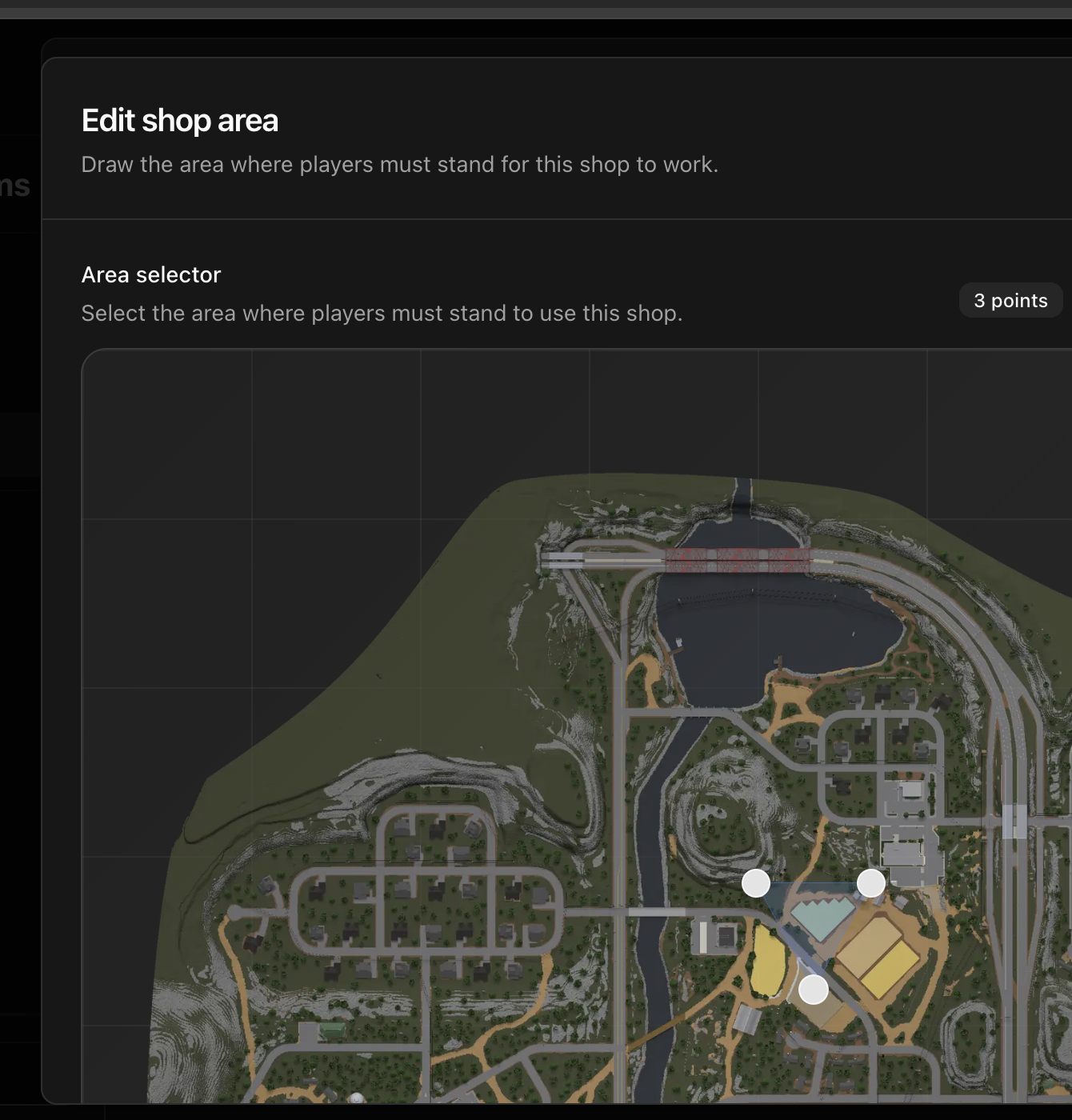
- Select points around the area's perimeter in clockwise or counterclockwise order. Three points create the smallest usable area; add more points when the boundary needs to follow a more detailed shape.
- Drag a point to adjust it. Use Undo last to remove the most recent point or Clear all to start again.
A shop area must contain either no points or at least three. CoreRP checks the point count, so avoid duplicate points, straight-line shapes, and crossing edges.
- Select Save area.
- Select Save changes in the shop editor.
- Select the module-level Save.
All three save actions are required. Save area returns the polygon to the shop editor, Save changes stages the shop, and the module-level Save stores the Shops configuration.
- Refresh the dashboard, reopen the shop, and confirm that Shop area shows the saved number of points.

The restriction applies to the shop's existing panel. Members outside the saved polygon see Shop area required and a marked map; members inside can continue with the normal purchase flow.
Remove the restriction
- Reopen the shop's Edit area dialog.
- Select Clear all, then Save area.
- Select Save changes, followed by the module-level Save.
- Refresh and confirm that the shop shows no area. It now works everywhere, subject to its normal shop access rules.
Troubleshooting
- If the point count disappears after refresh, repeat Save area, Save changes, and the module-level Save in that order.
- If CoreRP reports a missing ID or account, confirm that the member has both an active CoreRP identity and an active primary bank account.
- If CoreRP reports that ER:LC is disabled or its API setup is missing or invalid, finish the ER:LC connection before trying the shop again.
- If CoreRP reports ER:LC server offline or Location unavailable, start the private server, confirm that the identity has the correct Roblox name, and make sure that player is online with a current position.
- After moving into the area, wait a few seconds before trying again.
- If a player near an edge is rejected, move clearly inside the polygon.
Next steps
Continue with Buy and sell items or vehicles in a shop for the complete member transaction flow.