Configure anonymous chat
Choose where CoreRP publishes anonymous messages, control whether they can include images, and decide whether members can delete their anonymous accounts.
Before you begin
- Complete CoreRP setup.
- You need owner or administrator access to your Discord server in the CoreRP dashboard.
- Create or choose the channel where anonymous messages should appear. Give CoreRP View Channel, Send Messages, and Embed Links there.
- Anonymous accounts and aliases belong to the active citizen, not the Discord member as a whole. Creating one requires an active citizen ID and a Phone item in that citizen's personal inventory. Sending also requires that active citizen's anonymous account and a Phone item. Deleting requires that active citizen's account, but not a Phone item. Create the item first in Create and configure inventory items.
- Any command-channel, command-role, or command-cooldown rules configured for
/anonstill apply.
Anonymous messages hide the member's identity in the public destination. If a Core log channel is configured, its audit entry includes the real member and plaintext.
Configure anonymous chat
-
Open the CoreRP dashboard and select your Discord server.
-
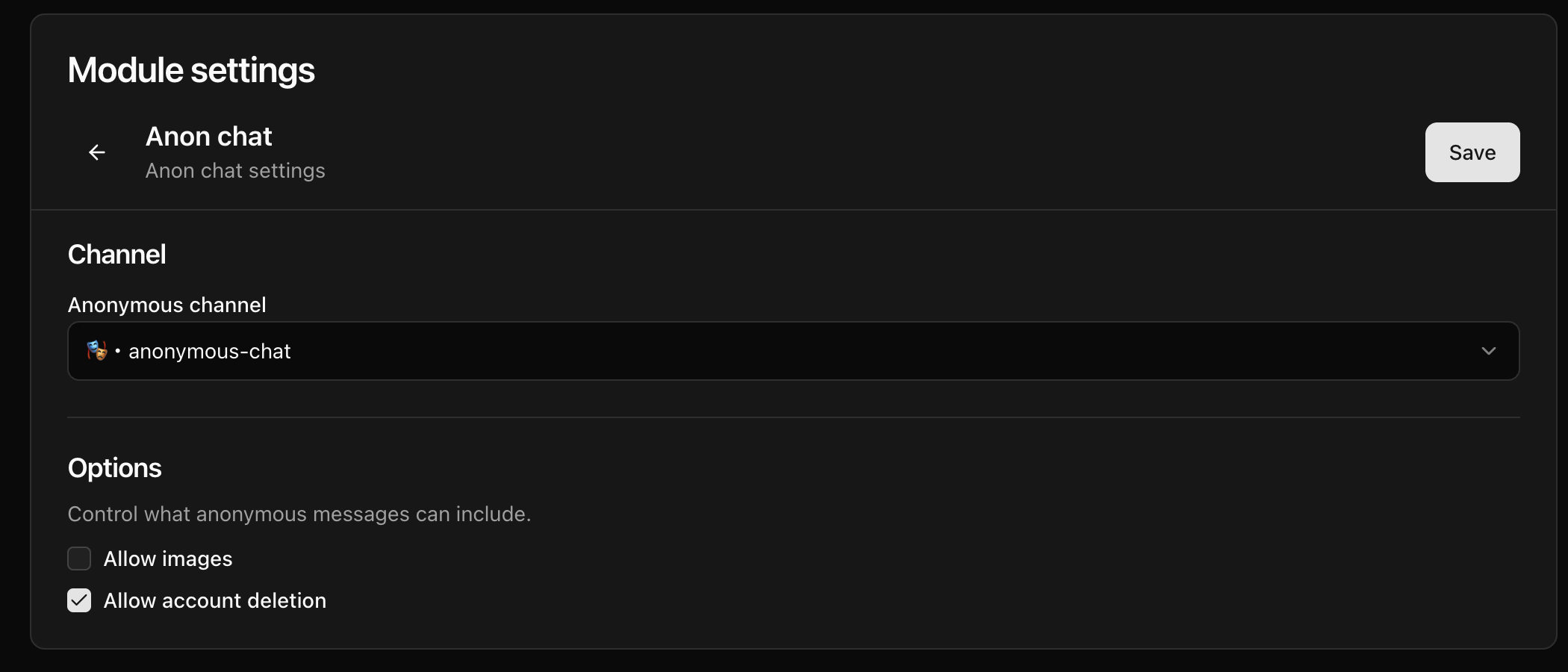
Open Module settings, then select Anon chat.
-
Under Anonymous channel, select the channel where CoreRP should publish anonymous messages.
-
Configure the two options:
- Enable Allow images to permit the optional
imageattachment in/anon send. - Enable Allow account deletion to permit
/anon delete. When it is disabled, the command reports that account deletion is not allowed and leaves the account unchanged.
- Enable Allow images to permit the optional
-
Select Save, refresh the page, and confirm that the channel and both options still show your choices.
/anon deletepermanently removes the active citizen's anonymous account and alias. It does not remove earlier public anonymous messages or their Core log entries. If that citizen later creates another account, CoreRP generates a new random alias.
Troubleshooting
- If account creation or sending reports a missing citizen ID or phone, activate a citizen ID and add a configured Phone-category item to that citizen's personal inventory.
- If sending reports that no anonymous account exists, confirm the intended citizen ID is active, then run
/anon createfor that citizen or switch back to the citizen that owns the account. - If no public message appears, recheck the saved Anonymous channel and CoreRP's View Channel, Send Messages, and Embed Links permissions there.
- If an image or deletion request is rejected, check Allow images or Allow account deletion, select Save, and confirm the setting after refreshing.
- If CoreRP asks the member to wait, let the displayed cooldown finish before retrying.
- If the anonymous message appears but no audit entry does, confirm that the Core log channel is configured and CoreRP has View Channel, Send Messages, and Embed Links there.
Next steps
Continue with Create or delete an anonymous account and send messages for the complete account, attachment, cooldown, and deletion workflows.