Configure restaurants and menus
Configure each restaurant, its menu, and the citizens mentioned on completed orders, then publish the restaurant list in Discord.
Before you begin
- Configure the CoreRP economy and bank.
- Use a dashboard account that can edit Module settings.
- Make sure the log thread you want to select is available to CoreRP. For order logs, CoreRP needs View Channel, Send Messages in Threads, and Embed Links in the log thread.
- Every person who should be mentioned on a completed order needs an active CoreRP citizen. This also applies when recipients come from a manually populated, Everyone, or Discord-role permission group.
- To publish the panel, you need Discord's Manage Messages permission and access to CoreRP administrator commands. CoreRP also needs permission to view the destination channel, send messages, and embed links.
Configure notifications and restaurant details
- Open the CoreRP dashboard and select your Discord server.
- Open Module settings, select Economy, then select Restaurants.
- Under Notification roles & logs, configure the shared restaurant settings:
- Select the top Manage perms control. In the Restaurants delivery window, choose the citizens or permission groups mentioned for completed orders from every restaurant.
- Restaurants log thread selects where CoreRP sends the completed-order log and those mentions.
- Select one of the restaurant tabs.
- Use the restaurant's Manage perms control to select the citizens or permission groups mentioned for completed orders from that restaurant.
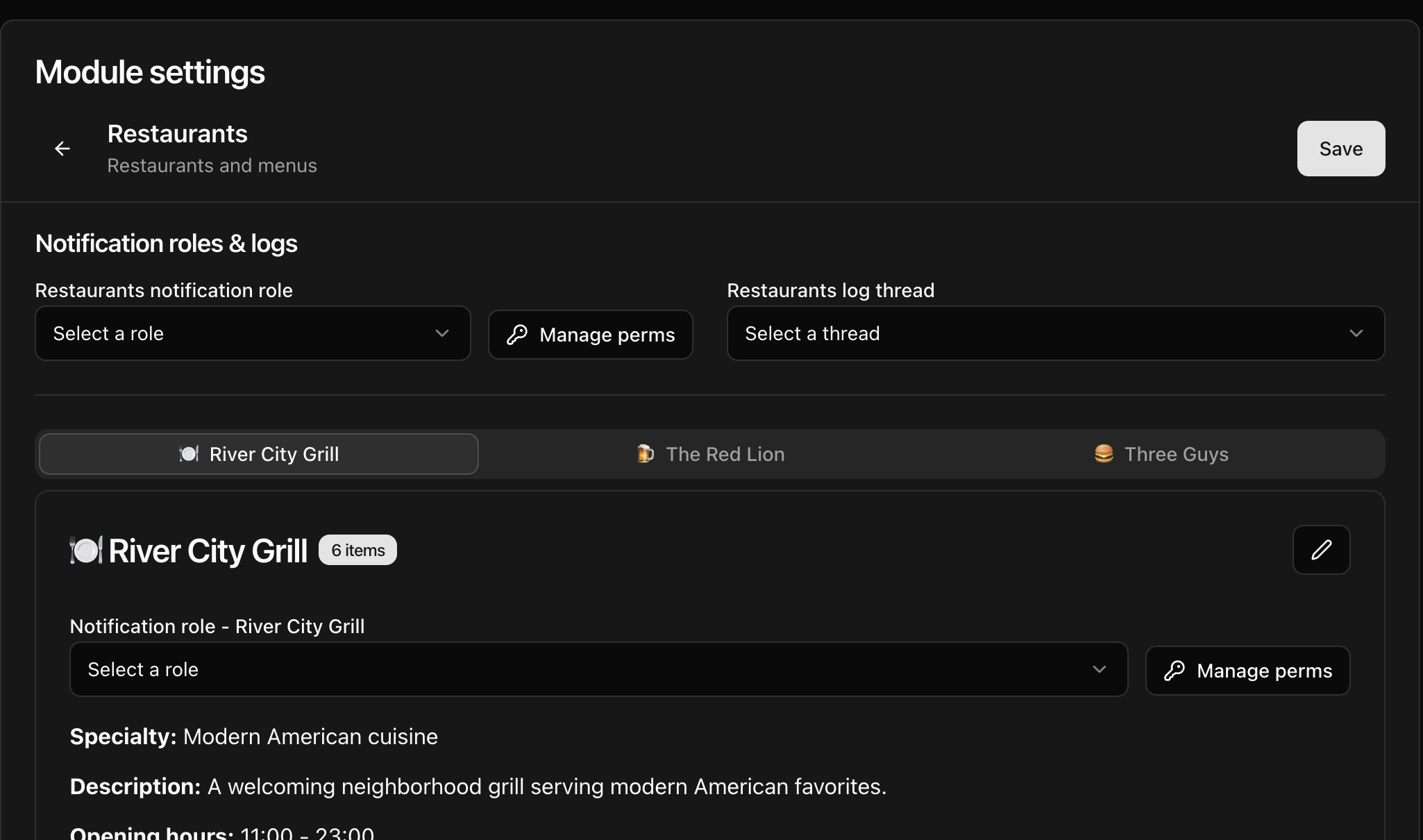
- Select the pencil button for the restaurant, set Name to
River City Grill, then update any other details members should see: Emoji, Specialty, Opening hours, Description, and Image URL. - Under Add new item, enter
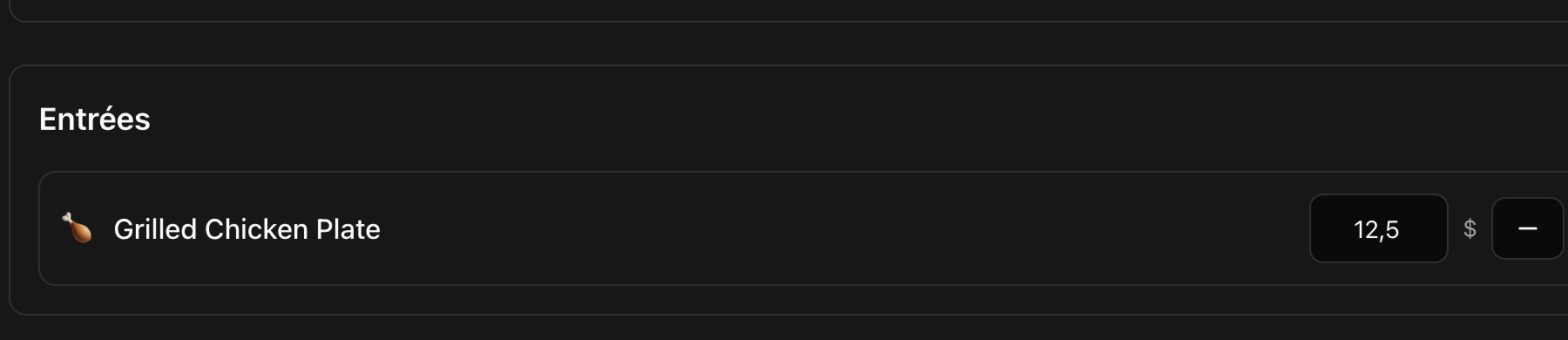
Grilled Chicken Plateas the Item name,Entréesas the Category, choose an appropriate Emoji, set Price to12.50, then select Add. Items with the same category are grouped together on the menu. - Adjust an existing item's price directly in its category. Use its minus button to remove it. The dashboard and Discord menu allow a price of
0, so use it only when the item should have no item charge.
Each restaurant must keep at least five menu items. When only five remain, CoreRP disables the remove buttons; a restaurant with fewer than five shows a warning.
- Select Save, reload the page, and confirm that the restaurant details, menu categories, items, prices, log thread, and direct-citizen permission assignments remain correct.
Adding or removing a citizen through Manage perms is staged until you select the module-level Save. Creating or editing a permission group, or granting or revoking a group for this feature, saves immediately.
Publish the restaurant menu
- In the Discord channel where you want the restaurant list, run
/admin panelwith these options:panelis required; selectRestaurants.channelis optional; select another channel to publish there, or omit it to use the current channel.
- Confirm that CoreRP returns a private panel-sent response and publishes a separate, public Foodora - Food Delivery panel with the saved restaurant details.
After changing restaurant details, save the settings and publish the panel again. After changing menu items or prices, save the settings and reopen Order.
Troubleshooting
- If an item cannot be removed, count the remaining items. The dashboard preserves the five-item minimum.
- If a role or thread is missing from a selector, confirm that it still exists in Discord and refresh the dashboard's server data.
- If the panel cannot be published, check your Manage Messages permission and CoreRP's view, send, and embed permissions in the destination channel.
- If a completed order has no log or staff mentions, check CoreRP's View Channel, Send Messages in Threads, and Embed Links permissions in Restaurants log thread, then confirm the intended recipients have active CoreRP citizens and are assigned through the correct Manage perms control.
Next steps
Continue with Order food from a CoreRP restaurant. To learn how configured staff receive completed-order notifications, see Receive restaurant order notifications as staff.