Create events and tickets with TicketPortal
Create a TicketPortal event and publish its ticket panel in Discord.
Before you begin
- You need owner or administrator access to the CoreRP dashboard.
- Confirm the server's language, country, and timezone settings before choosing event times.
- Configure the CoreRP economy so Discord displays the correct ticket currency.
- CoreRP needs View Channel, Send Messages, Embed Links, and Read Message History in the Discord channel where you publish the panel.
- To run
/admin panel, you need the Discord Manage Messages permission and access to CoreRP administrator commands.
Create the event
- Open the CoreRP dashboard, select your Discord server, then open Module settings → TicketPortal.
- Under TicketPortal channel, select the text or announcement channel where CoreRP should maintain the public event panel.
- Select Add event. Enter
Liberty County Auto Showas the Event title,River City Convention Centeras the Location, andA public showcase of vehicles from across Liberty County.as the Event description, then select Add event again. The event title is required.
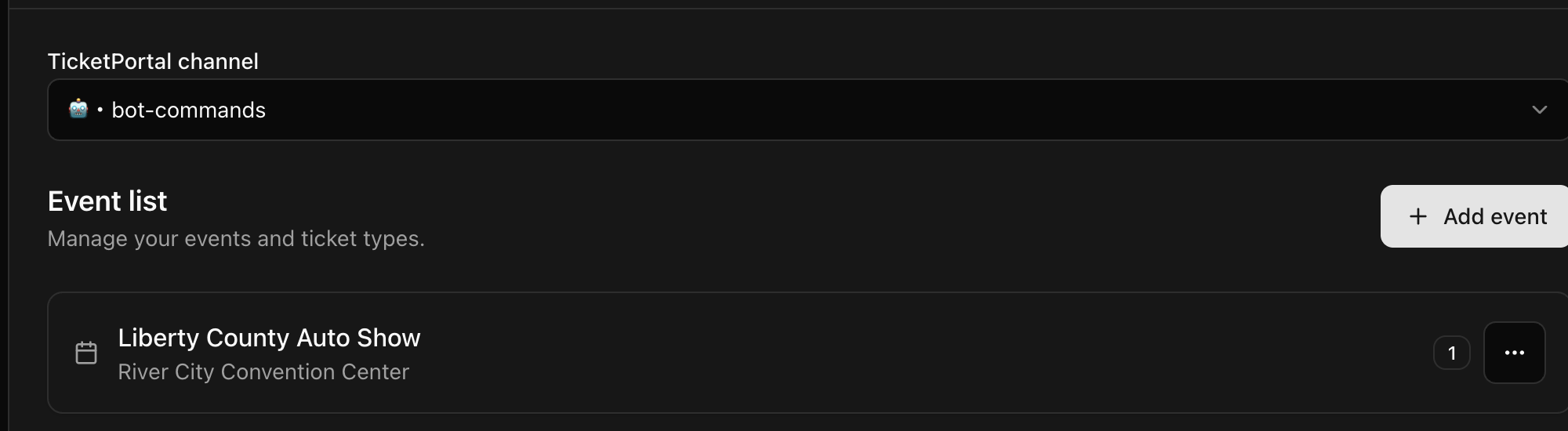
- Reopen the event with its three-dot menu. Creating the event first is required before you can add dates or ticket types.
- Under Event dates, choose the Start date, Start time, End date, and End time, then select Add date.
- Under Ticket types, enter
General Admissionas the Type name and25as the Price, then select Add ticket type. A price of0creates a free ticket.
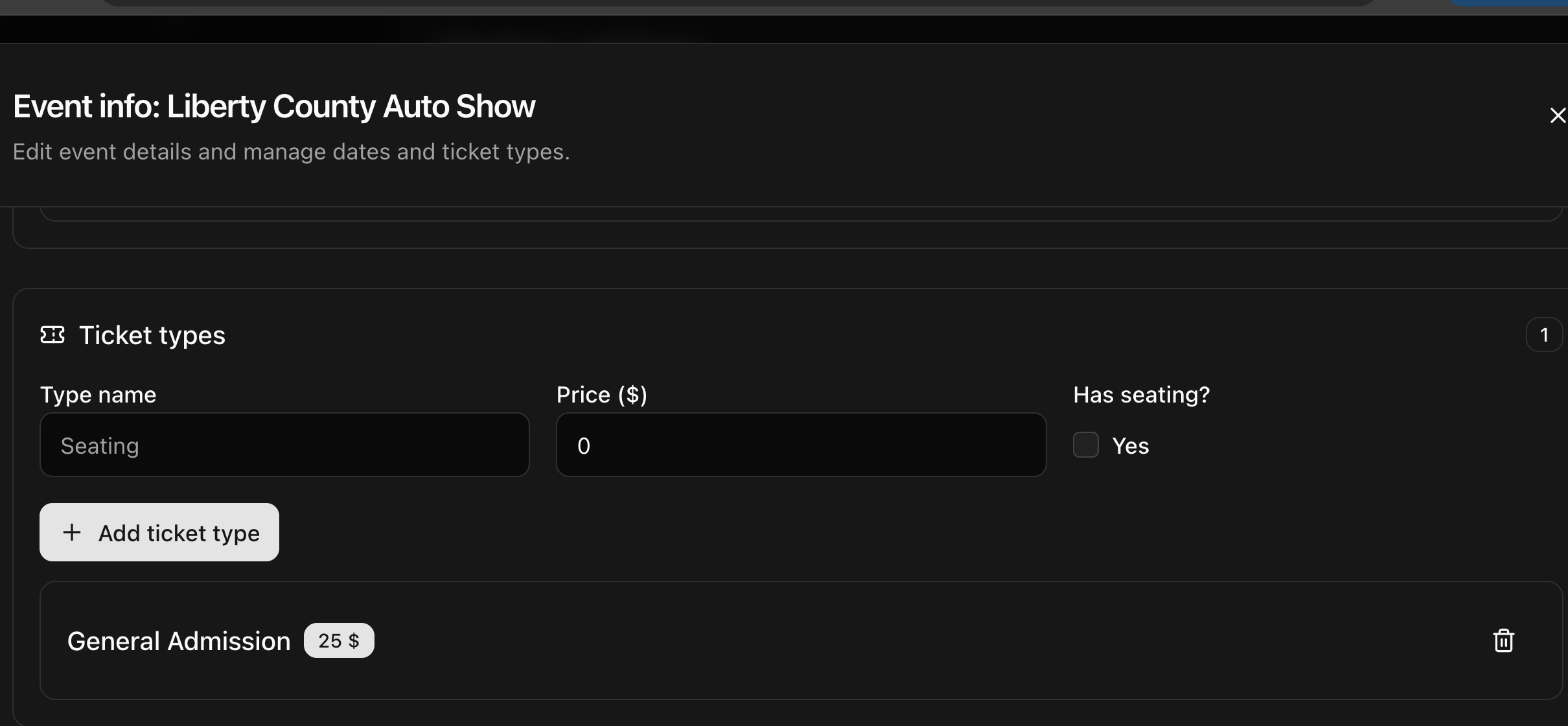
The trash button beside a date or ticket type stages that entry for removal. Delete event stages the entire event for removal. Review the event before selecting the module-level Save, which applies the changes and refreshes the public panel.
- Select Save changes, then select the module-level Save. CoreRP persists the staged event set and refreshes the panel in TicketPortal channel. Reload the page and reopen the event to confirm that its details, date, and ticket type remain listed.
After reloading, confirm that the event title, location, date, time, and ticket price are correct before announcing it.
Publish the panel
- In the Discord channel where you want the event panel, run
/admin panel panel:Tickets. Thepaneloption is required. The optionalchanneloption publishes to another selected channel instead of the current one. - Confirm that CoreRP returns the private message Panel was sent to this channel. and that the public Ticketportal.com panel lists the event, location, date, description, price, and Buy ticket button.
For the example in this guide, the panel should list Liberty County Auto Show at River City Convention Center with the saved date, time, and ticket price.
Troubleshooting
- If no panel appears, confirm that TicketPortal channel is a text or announcement channel and that CoreRP has View Channel, Send Messages, Embed Links, and Read Message History there. Then run
/admin panel panel:Tickets channel:#your-channel. - If the event is missing from the panel, confirm that it has a future date with an end time that has not passed, select the module-level Save, and republish the panel.
Next steps
Continue with buying and receiving TicketPortal event tickets.