Publish CoreRP panels in Discord
Publish a configured CoreRP panel in the current Discord channel or another channel you select.
Before you begin
- Complete CoreRP setup.
- You need Discord Manage Messages and access to
/admin panel. - Configure the feature before publishing its panel. For ID Creation, complete the ID-card configuration first.
- In the destination text channel, CoreRP needs View Channel, Send Messages, and Embed Links. ID Creation, Tickets, and Psychological Tests also need Read Message History.
Panel choices
The required panel option provides these 16 English choices:
- ID Creation — character and ID-card registration.
- Vehicle registration — vehicle registration.
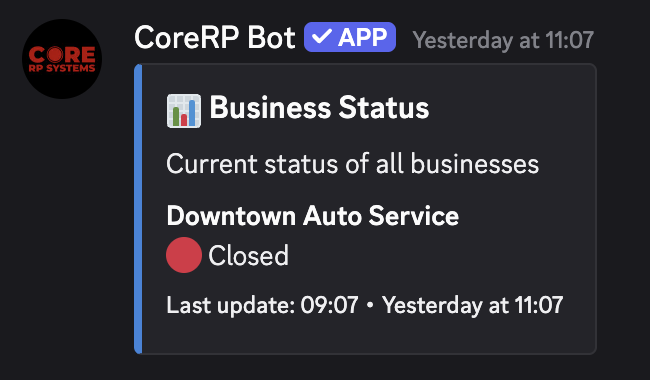
- Businesses — current business status.
- Shop — a configured shop or buyback panel.
- Restaurants — restaurant ordering.
- Tickets — available event tickets.
- Casino — casino access.
- Social Benefit — benefit collection.
- Insurance Company — insurance purchases.
- Driving License — driving-license purchases.
- Gun License — gun-license purchases.
- Psychological Tests — psychological-test purchases.
- Public Transport — public-transport tickets.
- Electrical Company — electricity payments.
- Gas Station — fuel purchases.
- Water Company — water payments.
Publish a panel
Use this command syntax:
/admin panel panel:<required> channel:<optional>
- Open the channel where you want the panel, or choose another destination with channel.
- Run
/admin paneland select a value for panel. This example uses Businesses.
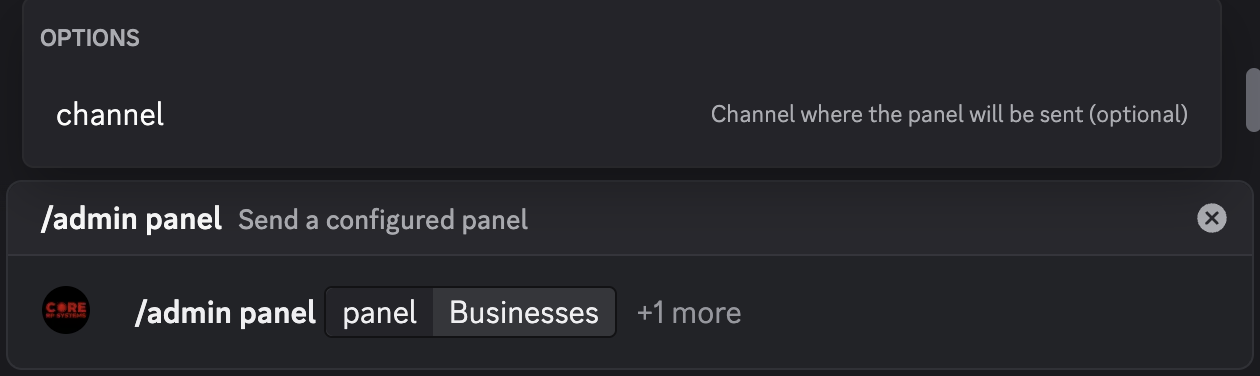
- Send the command. CoreRP privately confirms Panel was sent to this channel. and publishes the panel in the selected destination. Choosing channel does not change any saved dashboard setting.
Publish a Shop panel
Shop uses an additional private selection step:
- Run
/admin panel panel:Shop, adding channel only when needed. - In the private Choose a shop menu, select an enabled shop or buyback.
- CoreRP confirms the destination and publishes the selected shop panel.
If no shop is enabled, CoreRP displays Empty shop and There are currently no items in this shop. Enable and configure a shop in the dashboard before trying again.
After changing settings shown on a panel, run /admin panel again.
Troubleshooting
- This subcommand does not exist. — select one of the available panel choices.
- CoreRP cannot send the panel — check its permissions in the destination channel.
- This command is currently disabled. or You do not have permission to use this here. — enable
/adminor use an allowed channel and role. - A cooldown response — wait for the displayed cooldown before retrying.
Next steps
Continue with the feature-specific tutorial for the panel you published, or learn how to manage citizen items and money.