Configure ID cards and multiple characters
Choose where members create ID cards, control additional characters, and define the cooldown, Discord nickname format, and Roblox-verification requirement.
Before you begin
- Complete CoreRP setup.
- You need owner or administrator access to your Discord server in the CoreRP dashboard.
- Synchronize the text or announcement channel that will contain the ID-creation panel and any role you may use for additional characters.
- In the ID-card channel, CoreRP needs View Channel, Send Messages, Embed Links, and Read Message History.
- To apply the configured Discord nickname, CoreRP also needs Manage Nicknames, its bot role must be above the member's highest role, and the member cannot be the Discord server owner.
Keep CoreRP's configured ID confirmation channel staff-only because it contains citizen identity controls.
Configure ID cards
-
Open the CoreRP dashboard and select your Discord server.
-
Open Module settings, then select ID cards.
-
Select the ID card channel where CoreRP should publish the creation panel. The selector accepts synchronized text and announcement channels.
-
Configure additional-character access:
- Multicharacter role is optional. When selected, it is required only when a member creates a second or third ID; the first ID remains available without it. If no role is selected, every member can create additional IDs up to the configured maximum.
- Maximum ID cards accepts
1,2, or3per Discord member. Reducing it does not delete IDs that already exist.
The per-member maximum is separate from the free language-specific bot limit of
25total IDs across the entire Discord server. Reaching either limit blocks another creation.
-
Enter the ID card change and creation cooldown. It is shared by creation and switching and starts only after either action succeeds.
Enter a whole number followed by
s,m,h, ord, such as1mor2h. The minimum is1m. -
Set the Discord name layout using any of these variables:
{name}for the citizen's first name{surname}for the citizen's last name{robloxNick}for the Roblox nickname
The layout must contain
1to120characters. Leaving it blank restores{name} {surname} | {robloxNick}. Discord nicknames are limited to32characters, so CoreRP may abbreviate a long result. The new layout applies the next time a member creates or switches an ID. -
Choose whether to enable Require Roblox account verification:
- When disabled, the registration form asks the member to enter a Roblox nickname without external verification.
- When enabled, CoreRP removes that manual field and requires the member to complete the connected Roblox verification flow. Registration cannot continue when the verification service is unavailable or the account is not verified.
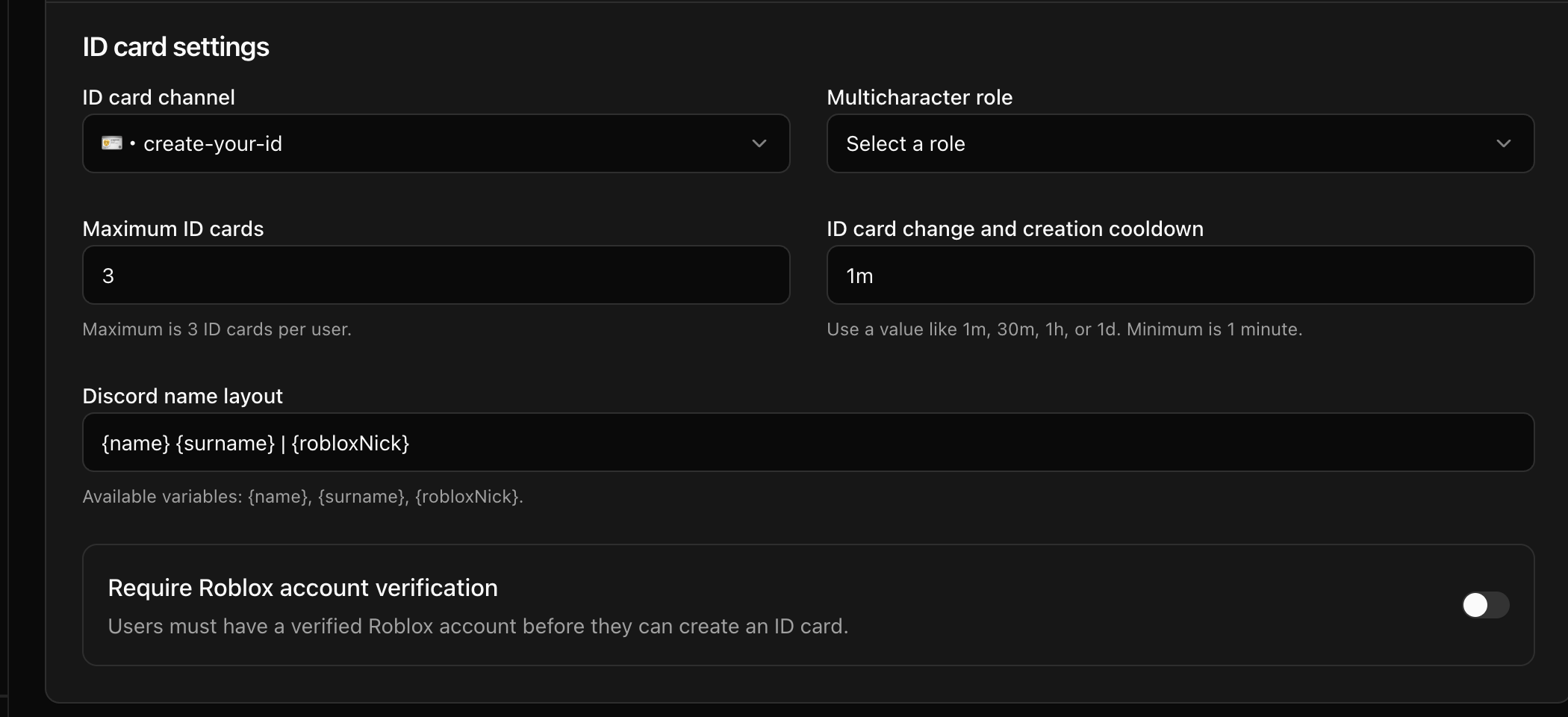
- Select Save, refresh the page, and confirm that all six settings still show the saved values.
Refresh the Discord panel
After changing the ID-card settings, publish the panel with:
/admin panel panel:ID Creation channel:[channel]
The panel option is required. The channel option is optional and defaults to the channel where you run the command. This path requires Discord's Manage Messages permission and any generic /admin access rules configured for the server; it does not additionally require the configured moderator role.
Check the panel
- Open the saved ID card channel and confirm that the panel contains Create your ID card and Generate random data.
- When Maximum ID cards is above
1, confirm that Switch ID also appears. Check the dashboard when you need the exact saved maximum.
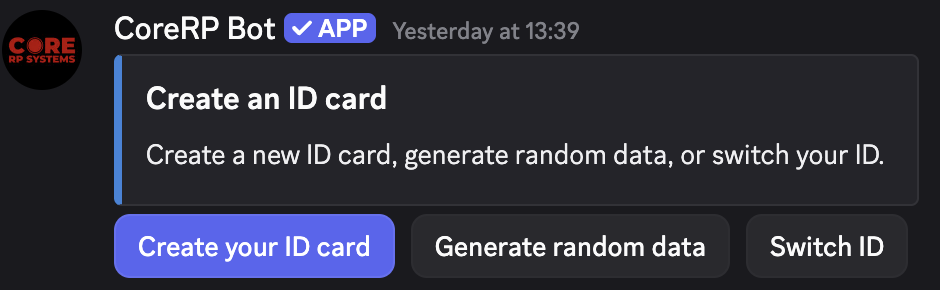
The panel shows the available creation controls. Check the dashboard for the exact ID limit, and check the member list when you need to confirm a nickname change.
Troubleshooting
- If the panel is missing, run the complete
/admin panel panel:ID Creation channel:[channel]command and check CoreRP's four required channel permissions. - If a member cannot create another ID, check the
1–3per-member maximum, the optional Multicharacter role, the shared creation/switch cooldown, and the separate25-ID free-bot server limit. - If Roblox verification cannot start or finish, confirm that the verification service is available and that the member completed the external flow.
Next steps
Continue with Create your first CoreRP character and ID card or Create and switch between multiple characters. Administrators can learn to publish CoreRP service panels, update a citizen's identity fields, or delete or restore a citizen's data.