Search citizens, garages, and police records
Use CoreRP's police searches to inspect a citizen's inventory, vehicles, profile, and criminal records.
Before you begin
- Create or select your CoreRP character when your police permission is assigned directly to a citizen.
- An administrator must configure emergency-service permissions and use Manage perms to grant either Police commands or City Police commands. Selecting an alert role alone does not grant command access.
/policeand the selected subcommand must be enabled. Use them in the configured channel.- The target needs an active citizen for person, garage, and criminal-record searches.
/police search-databaseposts its results and opened profiles publicly. Use a staff-only channel when the profile contains roleplay identity, document, vehicle, or record information.
Paging, profile, and record controls are limited to the member who opened them.
Choose a search
All five commands have only the options shown:
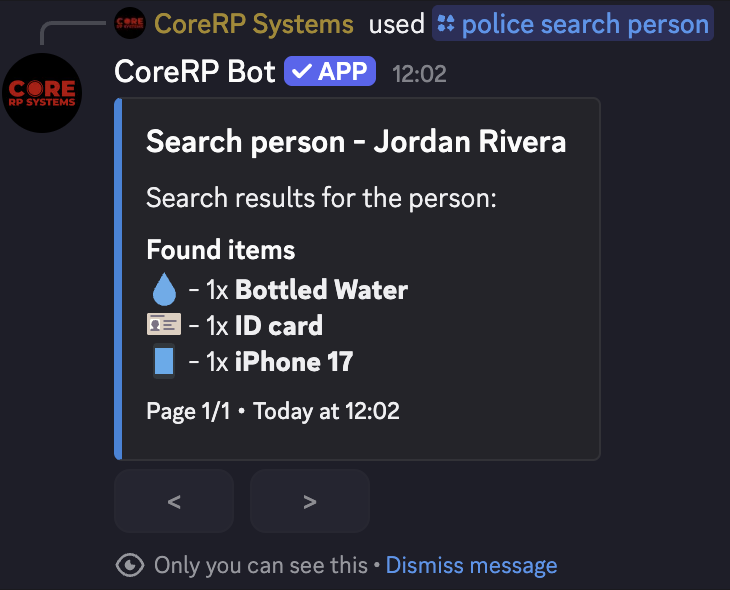
/police search person target:<member>— privately lists the active citizen's visible inventory, ten item names per page./police search garage target:<member>— privately lists all visible vehicles and their registration details./police search-database query:<text>— publicly searches active citizen names and visible vehicle plates or models. Enter at least three characters. CoreRP shows only the first10matches with no pagination, so refine the query when the intended result is absent./police criminal-record target:<member>— privately lists every fine and punishment, including deactivated records./police record id:<record-ID>— privately opens one exact fine or punishment.
None of these options uses autocomplete. Copy an exact record ID from /police criminal-record when opening a record.
Run and inspect the searches
- Run the appropriate command with a member, query, or record ID.
- For a person result with more than ten item names, use the owner-only previous and next controls.
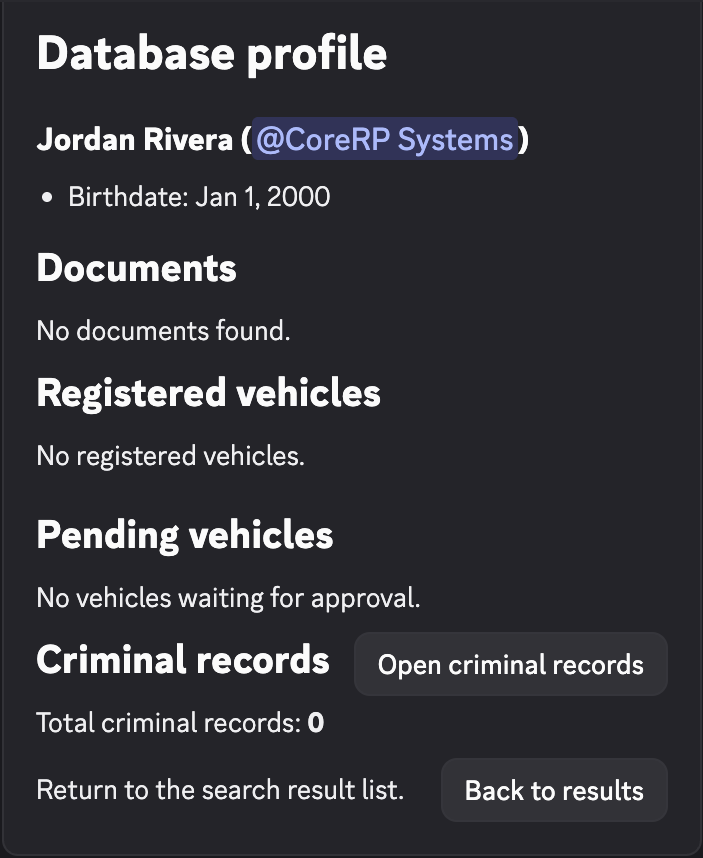
- In a public database result, select Open profile to view up to
30permanent documents,8registered vehicles,8pending vehicles, and the active-record count. The profile reports when additional entries are omitted. Select Back to results to return. - In the public profile, select Open criminal records when you need the private register.
- In an exact record, review its reason, officer, date, status, and fine or punishment details. Record management belongs to the next tutorial.
Troubleshooting
- A police-permission response — ask an administrator to grant Police commands or City Police commands through the corresponding Manage perms control; selecting an alert role alone does not grant commands.
- A cooldown response — wait for the displayed cooldown before retrying.
- The target has no citizen ID — ask them to create or activate the intended character.
- No records matched your search — enter at least three characters and search an active citizen's name, visible plate, or model.
- No record with this ID was found — copy the current ID exactly; matching is server-specific.
- These buttons are not for you — only the member who opened the original result can use its controls.
- A garage in-game response — when its optional ER:LC rule is enabled, join the connected private server with the linked active character.
Next steps
Continue with issue fines and punishments.