Configure emergency services and phone routing
Choose where CoreRP posts service calls, which roles it mentions, and who can use responder actions.
Before you begin
- Complete CoreRP setup.
- You need dashboard owner or administrator access.
- Create or sync a text or announcement dispatch channel, the responder roles you need, and an optional taxi thread.
- Give CoreRP View Channel, Send Messages, and Embed Links in its command and dispatch channels. Alert roles must be mentionable, or CoreRP needs Mention @everyone, @here, and All Roles.
- Phone users need an active citizen ID and a Phone category item. Viewing or placing calls also requires an existing CoreRP phone number.
Configure service routing
-
Open the CoreRP dashboard, select your server, then open Module settings → Emergency Services & Phone.
-
Under Dispatch channel, select where emergency and road-service reports should appear.
-
Under Emergency responder access, choose the roles CoreRP should mention:
- Police alert role
- Firefighters alert role
- Ambulance alert role
- City Police alert role
- Road maintenance alert role
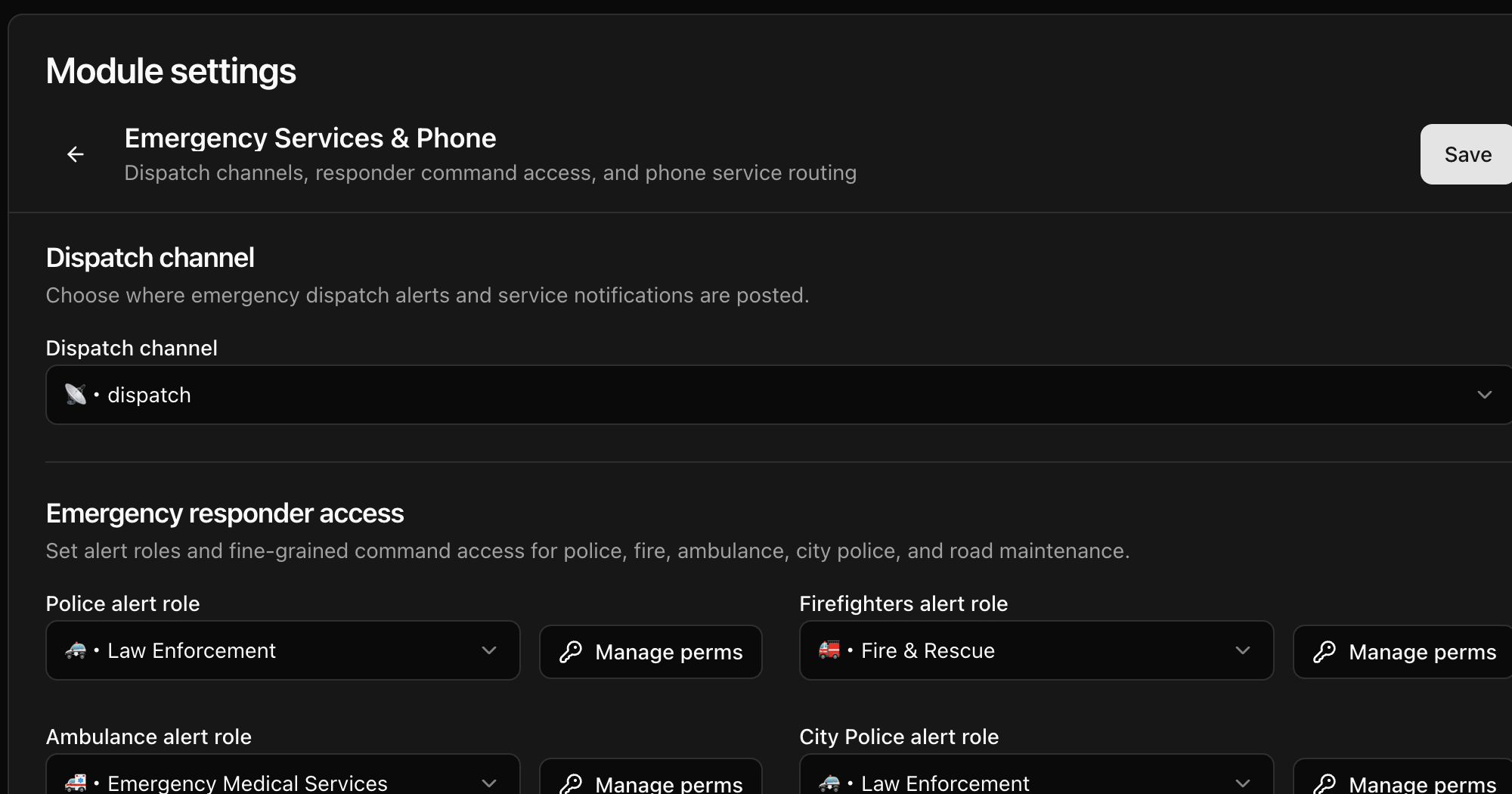
- Select Manage perms beside Police commands, Firefighter commands, Ambulance commands, City Police commands, and Road maintenance commands. Add individual Citizens or assign Permission groups.
Alert roles control mentions. Feature permissions control who can use Respond, Resolve, and Edit. Direct citizen changes are saved with the page's Save button; permission-group grants are applied from the permissions window.
-
Under Taxi service routing, choose the Taxi alert role and Taxi log thread.
-
Select Save. CoreRP displays Settings saved when the page values have been stored.
Troubleshooting
- No report — confirm the saved channel or taxi thread and CoreRP's channel permissions.
- Missing mentions — make the selected roles mentionable or grant CoreRP permission to mention all roles.
- You do not have permission to use this here. on a responder control — add the citizen or a matching permission group under that service's Manage perms.
Next steps
Continue with Create and view your phone number, Call another citizen or emergency service, or Receive and resolve service calls.