Find your Discord server in the CoreRP dashboard
Use the correct Discord account and dashboard filters to find the server you are authorized to manage.
Check the server list
- Sign in to CoreRP with the Discord account that has dashboard access.
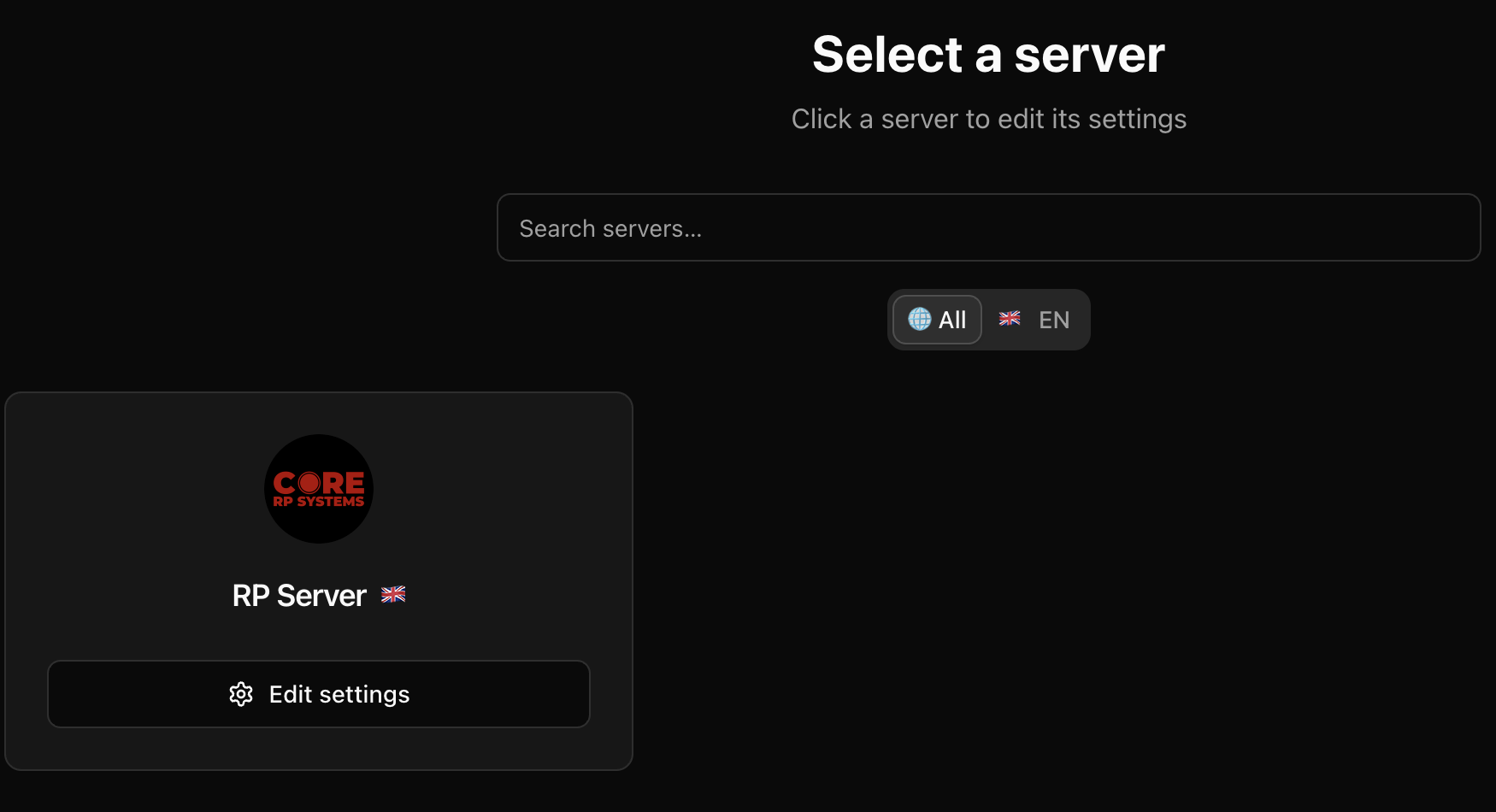
- On Select a server, choose All.
- Clear Search servers....
- Reload the page.
- Find the server card and select Edit settings. A new installation can show Needs setup until its first configuration is complete.
Refresh the server information
If CoreRP is already installed and you can use administrator commands:
- In the Discord server, run
/admin web. - Wait for the private Web Dashboard result.
- Select Open web dashboard, sign in, and reload Select a server.
The command refreshes CoreRP's server information. It does not grant dashboard access.
Get the correct access
- If CoreRP is not in the Discord member list, follow Invite CoreRP to your Discord server.
- If you are not the server owner and have not been granted dashboard access, ask an existing administrator to follow Request dashboard access for another administrator.
- If a direct server link says you do not have access, sign in with the authorized Discord account or contact CoreRP support.
Next steps
After opening the server, continue with Set up and verify CoreRP.