Create and manage businesses
Create a business, authorize staff to change its status, and publish a shared status panel in Discord.
Before you begin
- Complete CoreRP setup and have owner or administrator access to the server in the CoreRP dashboard.
- Synchronize the text or announcement channel that will contain the status panel. CoreRP needs View Channel, Send Messages, and Embed Links there.
- Decide whether to authorize staff directly or use an enabled permission group. Direct grants and manually assigned group members need an active CoreRP citizen. Groups can target Everyone, a synchronized Discord role, or selected citizens.
- To publish the panel, you need Discord's Manage Messages permission and access under the server's generic
/adminrules.
Create the business
-
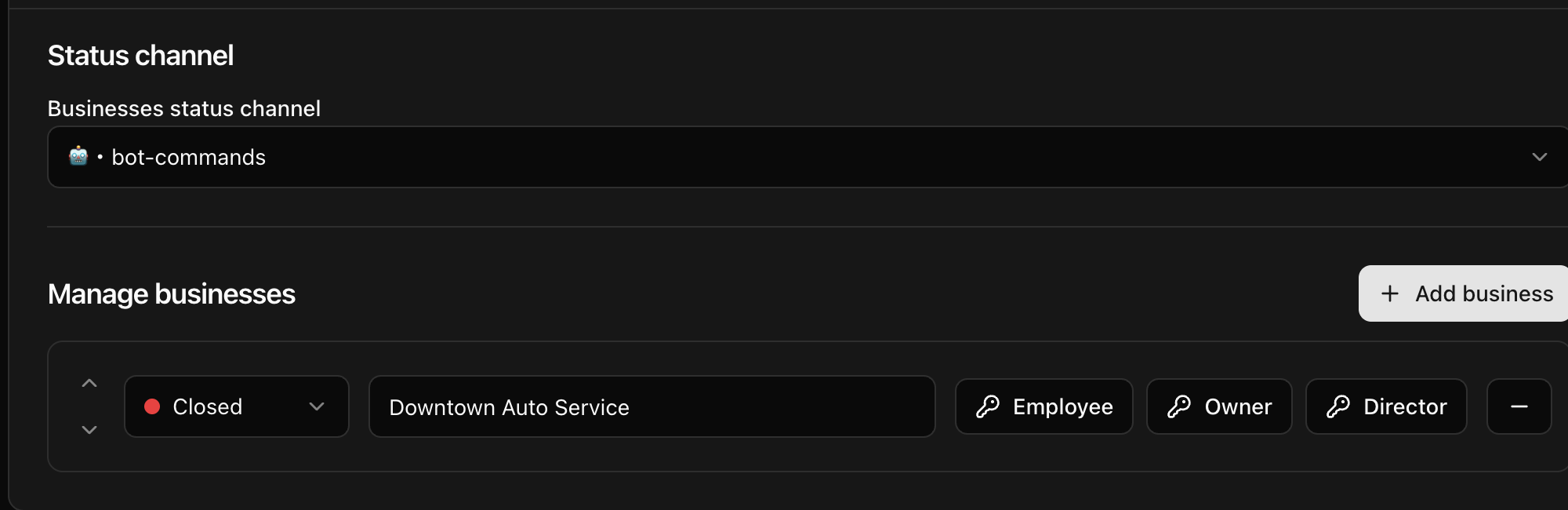
Open the dashboard, select your Discord server, and go to Module settings → Economy → Businesses.
-
Under Businesses status channel, select the channel where CoreRP should keep the shared status panel.
-
Select Add business, then enter the business name. You can configure up to
25businesses. Keep the name stable: CoreRP also uses it to identify that business's permission scope. -
Choose who can change the business status:
- Employee grants status-management access.
- Owner also authorizes status actions.
- Director also authorizes status actions.
All three permission types authorize
/business open,/business break, and/business close. Adding an individual citizen is staged until the module-level Save. Attaching or removing an existing permission group is saved immediately; that group can target Everyone, a synchronized Discord role, or manually assigned citizens. -
Use the arrow controls to reorder businesses or the status menu to set Open, Closed, or Break.
-
Select the module-level Save.
-
Refresh the page and confirm the channel, business, status, order, and permission counts remain present.
The minus button stages a business for removal. Review the list before selecting Save.
Publish the status panel
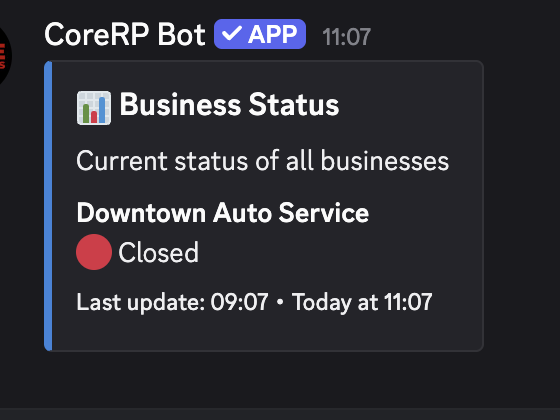
Run:
/admin panel panel:Businesses channel:[channel]
The panel option is required; select Businesses. The channel option is optional and defaults to the channel where you run the command. CoreRP updates a recent matching status panel when it can find one; otherwise it publishes a new panel.
Check the status controls
Members authorized as Employee, Owner, or Director can manage the saved business's status. Follow Open, pause, and close a business for the commands and complete staff workflow.
Troubleshooting
- If CoreRP reports that you lack permission, confirm an Employee, Owner, or Director authorization. Save a direct assignment to an active CoreRP citizen with the module-level Save, or confirm that the attached permission group is enabled and matches Everyone, the member's Discord role, or a manually assigned active citizen.
- If Discord cannot find the business, confirm that its row remained after refresh and select its exact saved name from autocomplete.
- If CoreRP rejects another status action, wait for the
60ssuccessful-action cooldown to finish. - If a timed break remains on Break after its duration, run
/business openand select the business. - If the panel is missing, confirm the saved status channel and CoreRP's channel permissions, then publish Businesses with
/admin panel.